


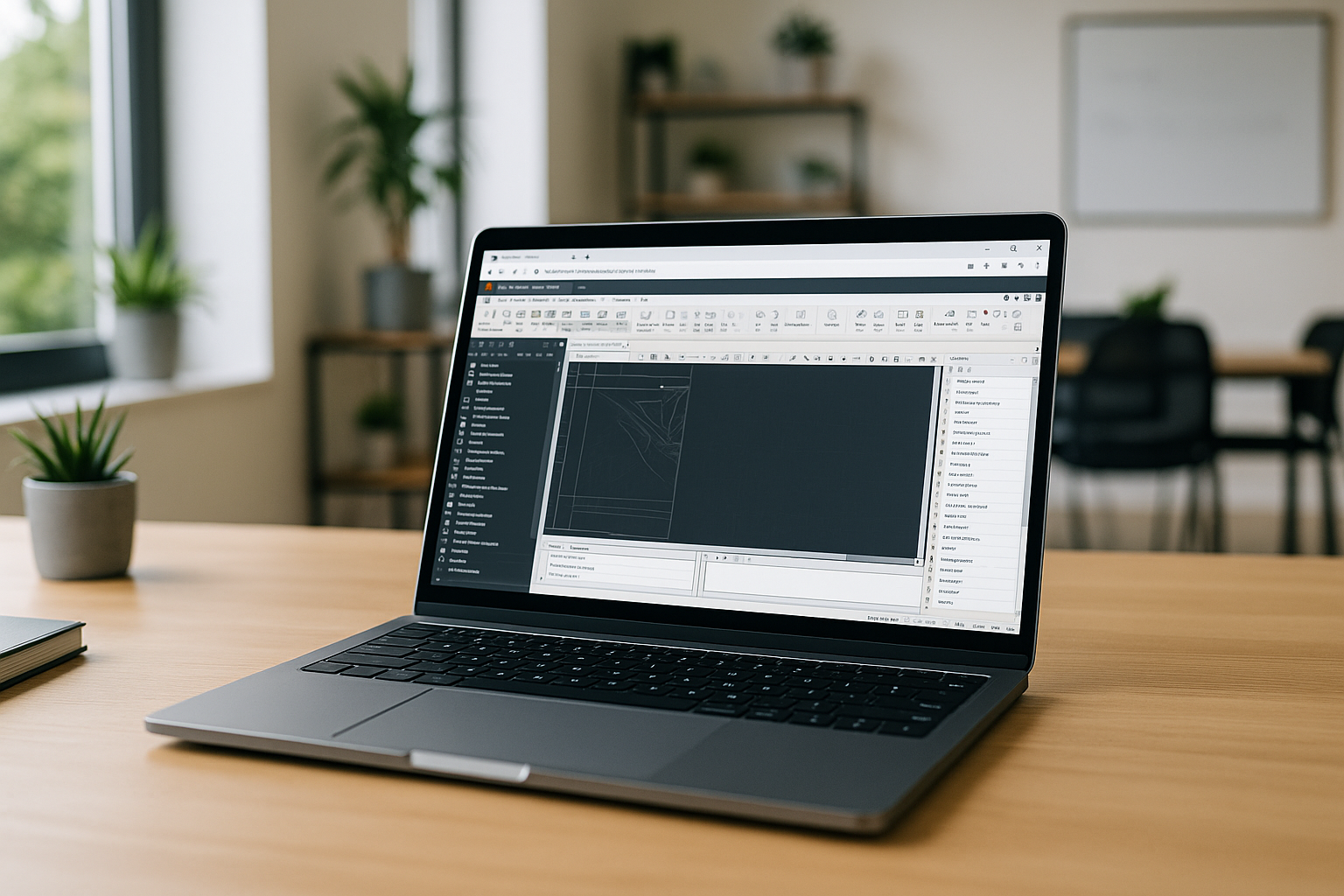
Autodesk Civil 3D is a professional civil engineering program used for designing infrastructure projects such as roads, land development, and transportation systems.
Unlike lightweight CAD tools, Civil 3D requires proper setup and system configuration before use. Understanding how to install and access the software correctly is essential for stable performance and efficient workflow.
System Requirements Before Installation
Before installing Civil 3D, it is important to ensure that your system meets the minimum requirements.
Typical requirements include:
- 64-bit Windows operating system
- Multi-core processor
- Dedicated graphics card
- At least 16 GB RAM (recommended more for large projects)
- Stable storage space for project files and libraries
Proper hardware ensures smooth operation when working with complex models such as corridors, surfaces, and large infrastructure datasets.
How to Install Autodesk Civil 3D on Windows
The standard installation process for Civil 3D follows a structured workflow:
First, users need to access their Autodesk account and download the official installer for Civil 3D. After launching the installer, the setup wizard guides users through the installation steps, including selecting components, installation directory, and additional libraries.
During installation, users can choose optional modules depending on their workflow needs, such as country-specific design standards or content libraries.
Once the installation is complete, Civil 3D can be launched directly from the desktop or Start menu, and initial configuration settings can be applied for project setup.
Civil 3D Setup and First Launch
After installation, the initial setup process allows users to configure templates, design standards, and workspace preferences. This step is important because Civil 3D is highly customizable and adapts to different engineering workflows.
Proper configuration ensures that the software is ready for real engineering tasks such as road design, grading, and corridor modeling.
Alternative Ways to Access Civil 3D
Since Civil 3D is natively designed for Windows, users on other operating systems such as macOS or Linux often need alternative solutions. In such cases, cloud-based access becomes a practical option.
Instead of complex virtualization setups or system compatibility workarounds, users can run Civil 3D through a remote environment. This allows full access to the software without installing it locally on the device.
A detailed explanation of how Civil 3D works and how it can be accessed in different environments is available in the guide to what is Civil 3D software.
Integration with Civil 3D Workflow
Once installed or accessed through a cloud environment, Civil 3D becomes part of a larger engineering workflow that includes:
- terrain and surface modeling
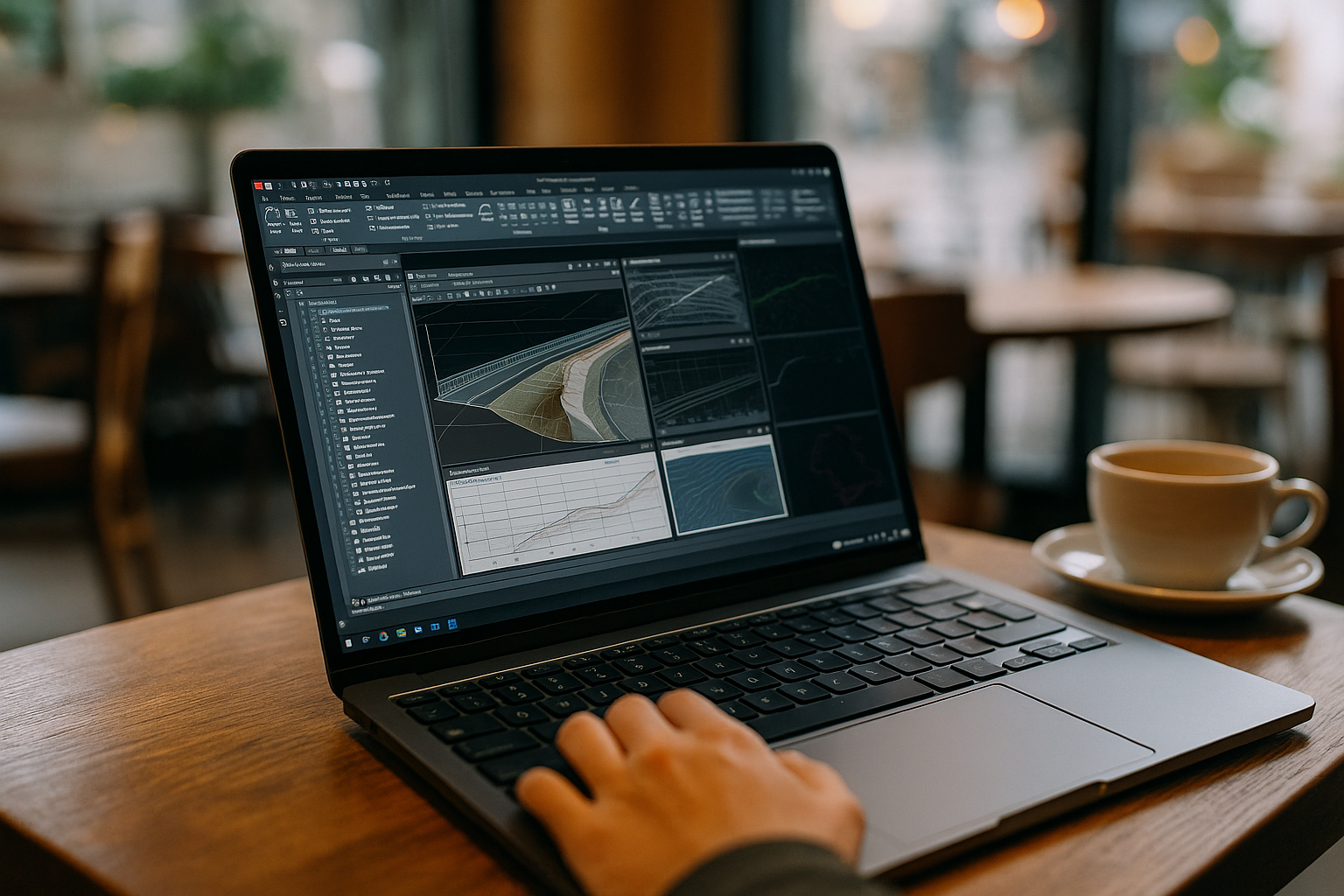
- alignment and corridor design
- grading and earthwork calculations
- transportation and infrastructure analysis
Each of these components works together, creating a dynamic design system where changes automatically update across the entire project model.
Civil 3D Workflow and Platform Access
Once installed or accessed through the Aristeem cloud environment, Civil 3D becomes part of a complete engineering workflow where all design elements are connected in a single system. Engineers can move from terrain modeling to alignment and corridor design, perform grading and earthwork calculations, and complete transportation analysis within one environment.
Because these components are interconnected, any changes made to the model automatically update across the entire project. This ensures consistency, reduces errors, and improves overall efficiency.
Although Civil 3D is primarily designed for Windows, users can also work across different platforms using alternative access methods. You can learn more about this in our guides to Civil 3D on Mac and Autodesk Civil 3D on Linux, which explain how to use the software beyond a standard Windows setup.
Conclusion
For users who prefer flexible access across devices, Aristeem provides an alternative way to work with Civil 3D without hardware limitations. This makes it possible to use the software efficiently on virtually any system while maintaining full functionality.
Whether installed locally or accessed through a remote environment, Civil 3D remains a core tool for modern infrastructure design and engineering workflows.


