


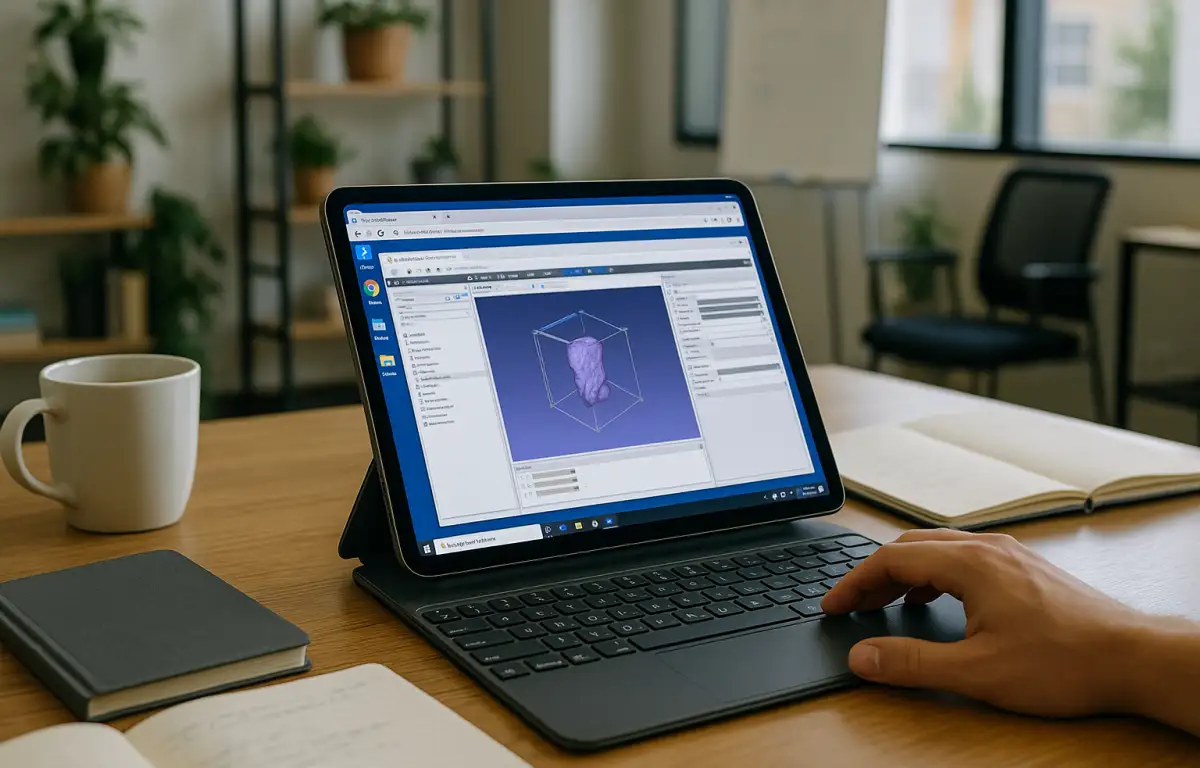
Field Reviews With 3D Slicer on iPad
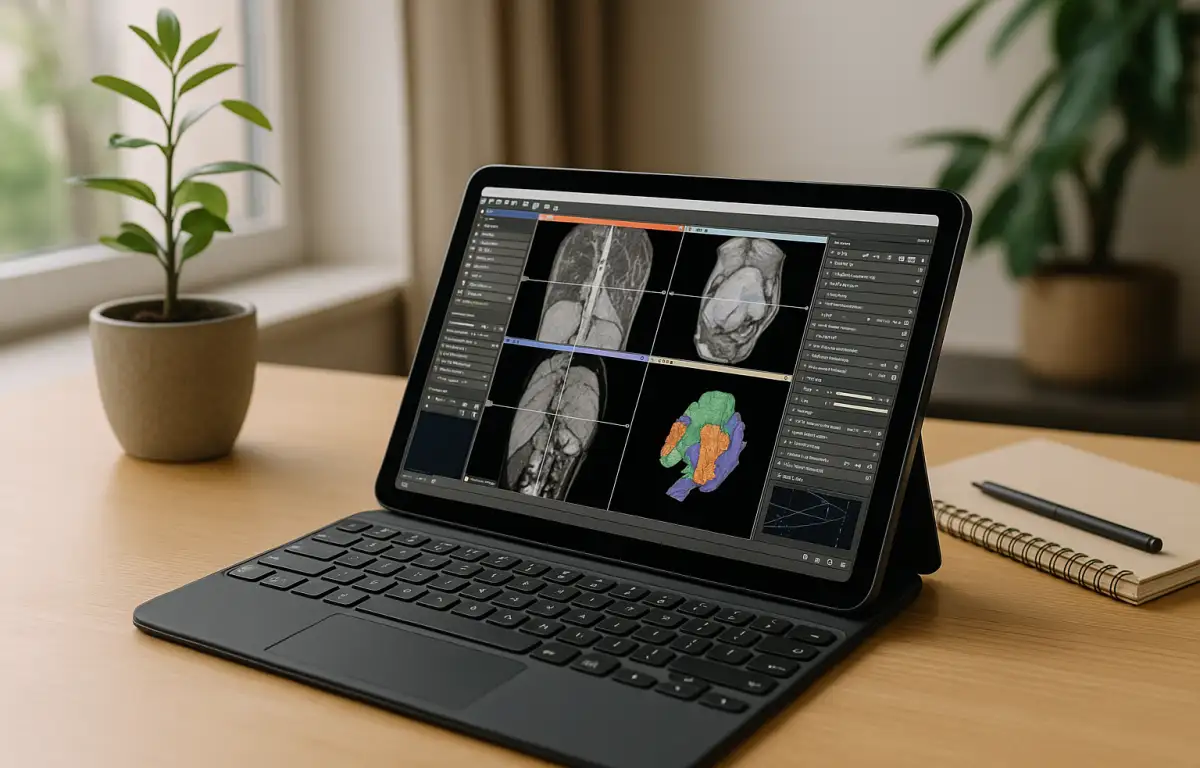
Morning rounds move fast, and imaging review happens on an iPad in conference rooms and clinics. Within minutes, a clinical imaging specialist needs to show current segmentations, labeled measurements, and planned transforms exactly as they appear on the workstation. First, they define the review set and lock a Slicer release, then add required extensions, load the standard color tables and window/level presets, and prepare MRML scenes and DICOM packages for handoff. 3D Slicer has no native iPadOS app. To access the desktop application during field reviews, specialists can connect to a Windows PC in the cloud from an iPad, provided the remote session and required workflows are compatible with their setup.
Pinning Versions and Extensions for 3D Slicer iOS Reviews
Those pinned elements — version, extensions, and presets — are the backbone of repeatable medical imaging reviews. The workflow requires an exact Slicer release, consistent extension builds for segmentation and registration, project color tables, deterministic window/level presets, and identical Markups, Transforms, and Segmentations nodes across MRML scenes. DICOM import rules and anonymization settings should be checked against the project requirements, and measurements should be verified before results are used in clinical discussions. To deliver that fidelity during meetings, the iPad must access the same full environment, not a trimmed viewer or a different preset set.
Keeping MRML and DICOM Aligned Across Devices
Because the same scenes move from desktop to meeting rooms and on to partner facilities, everything must open from the same point with the same behavior. The specialist needs the identical Slicer version and extension set, the same color tables and W/L presets, identical subject hierarchies, and paths that keep MRML and DICOM packages together. When reviews take place away from the primary workstation, a Windows PC in the cloud can provide remote access to a consistent Slicer installation, its extensions, presets, and project folders from an iPad, subject to network availability and the requirements of the workflow.
Best Way to Run 3D Slicer on iPad Consistently
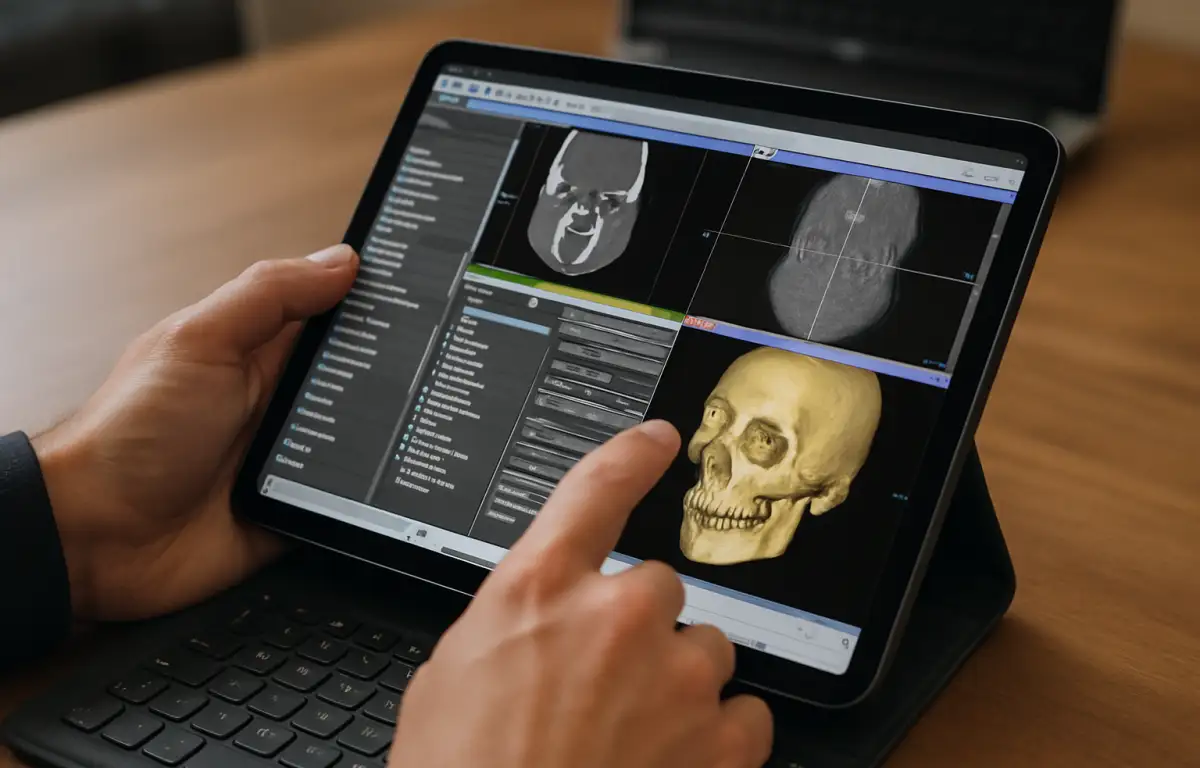
With a Windows PC in the cloud, the specialist can install a specific Slicer release, add compatible extensions, configure color tables and window/level presets, and keep MRML scenes and related project files in the same working environment. This helps maintain consistent settings across sessions, although rendering, interaction, and file access should be checked on the iPad before the setup is used for a particular review. Using their own licenses where needed and standard hospital security, this setup turns 3D Slicer for iPad into a consistent field review environment without changing how projects are prepared on the workstation.
Aristeem: Windows PC for 3D Slicer on iPad
Founded in 2024, Aristeem set out to provide a reliable way to access demanding professional software from any device. We focus on a Windows PC in the cloud you control — install the Slicer version you need, add extensions, keep presets, and organize project folders. We keep improving flexibility while testing new options for complex workflows. Your configured environment can remain available between sessions, helping you continue working with the same installed version, extensions, and project files. Before handling clinical imaging data, confirm that the setup meets your institution’s data-protection, access-control, and remote-work requirements. For a broader guide to running the desktop application remotely, see 3D Slicer software on a cloud PC.
3D Slicer for iPad Without Compromise
This approach helps keep the Slicer version, extensions, presets, and MRML/DICOM project files together as specialists access the working environment from different devices. A Windows PC in the cloud can support remote review of imaging data and segmentations, but the display, interaction, and measurement workflow should be verified before clinical use. If you want to keep field reviews synchronized with the desktop toolchain, explore working with medical imaging tools on a cloud Windows PC and adapt it to your current project cadence.


