


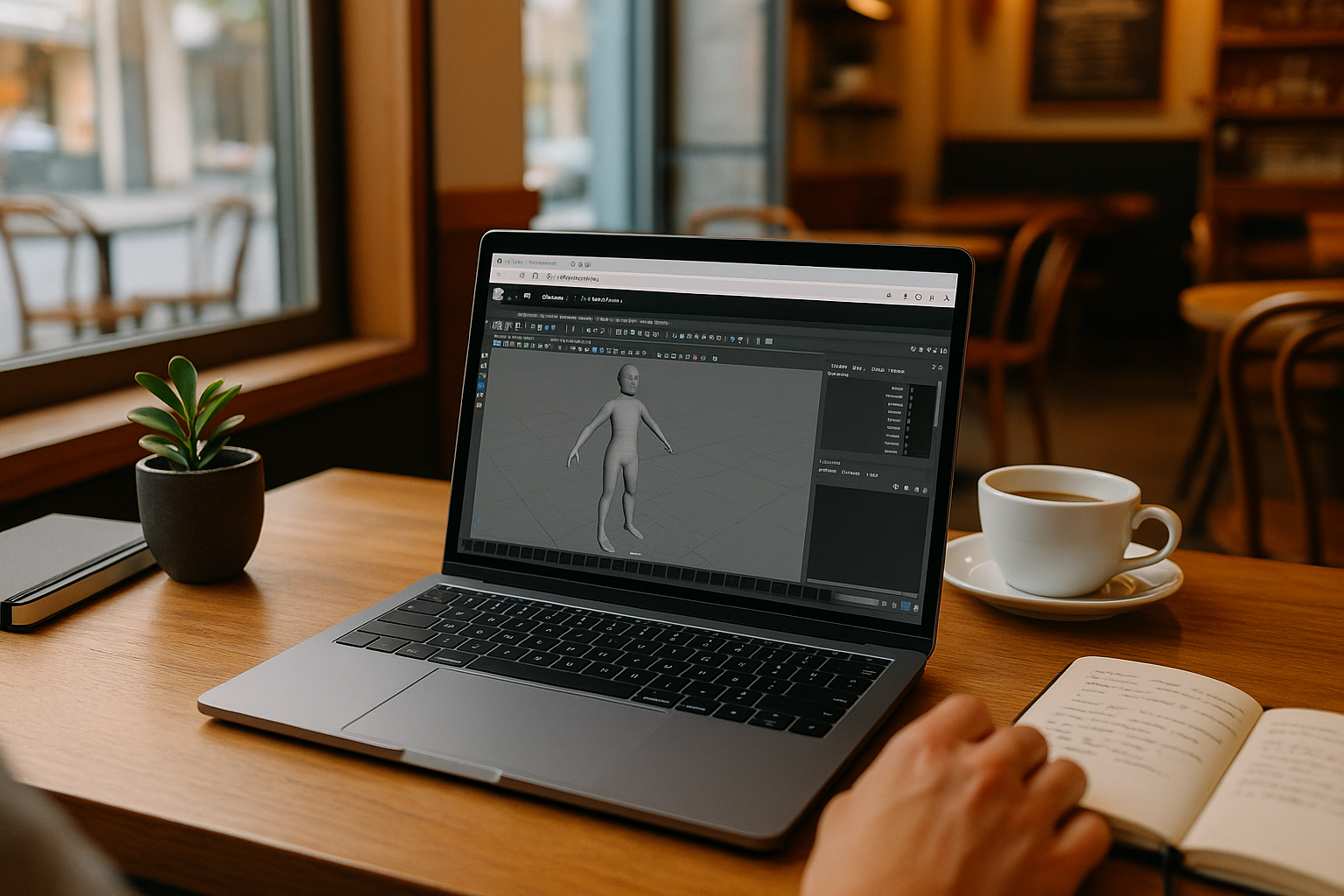
Maya on macOS for Shot Iterations and Lookdev
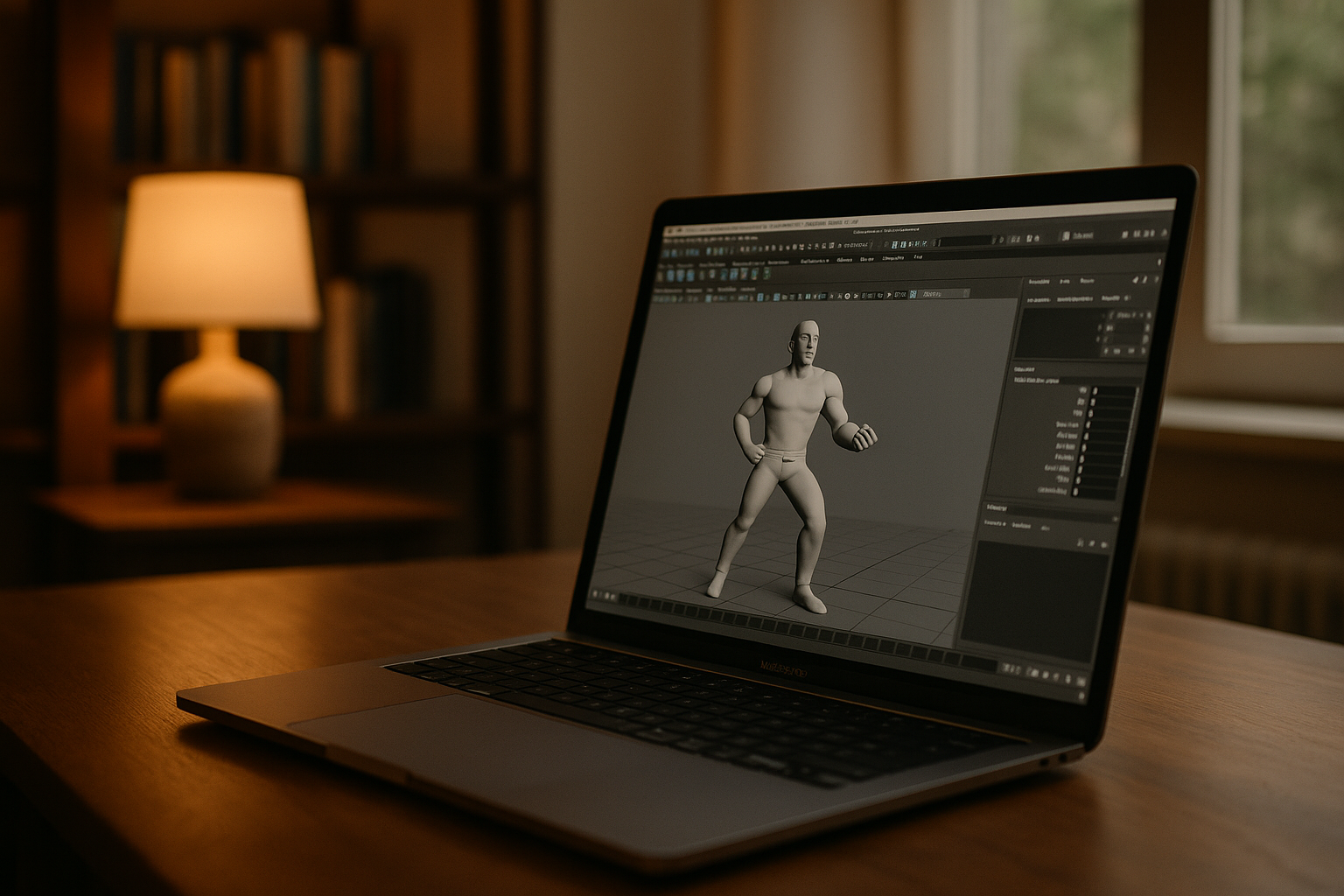
The day starts with a note pass on a hero shot. First, you confirm the project’s exact Autodesk Maya version, the team’s shelves and scripts, and required modules for USD and Alembic, then mirror those presets so they’re ready on macOS. Next, you open the sequence master, test a rig tweak, run an Arnold lookdev render, publish USD/Alembic caches for downstream work, and prepare a clean playblast before heading to an on-site review on a MacBook.
Many artists need to continue Maya work away from the studio, whether they are reviewing a shot on a MacBook or preparing changes before a client meeting. Keeping the Maya version, required plugins, shelves, scripts, and project settings consistent helps reduce setup differences between work sessions. The goal is to continue working with the same production tools without rebuilding the environment for every location.
What an Autodesk Maya on Mac Workflow Requires
For reliable shot iterations, the working environment should use the Maya version approved for the project, along with the required shelves, scripts, and USD/Alembic export tools. Arnold presets, color management, and project paths should also be configured for the production workflow so artists can check references and prepare cache exports with fewer setup differences. File naming, scene units, and frame ranges should follow the project’s established conventions.
Professionals who use Autodesk Maya for macOS regularly treat this stack as non‑negotiable because scenes, rigs, and caches are authored against that exact setup. Teams that share project files rely on predictable opens, matching viewport behavior, and stable export flags during deadlines. The practical question is how to access the required Maya setup away from the studio without repeatedly configuring the same tools on each device.
Maya on macOS Across Studio, Travel, and On‑Site
Those requirements follow you from a studio workstation to home or a client room. When you open a project away from the studio, you still need access to the approved Maya version, required USD/Alembic tools, shelves, Arnold presets, and project files. Having these components configured in one working environment can reduce repeated setup and help you prepare shot changes, lookdev tests, and cache exports during reviews.
Maintaining separate local installations across multiple Macs can mean repeating updates and checking plugin versions, paths, and presets on each device. An alternative is to keep the working setup on a cloud Windows PC, where you can install the required Maya version, plugins, libraries, and project tools, then access that environment from a compatible Mac through a browser.
A Consistent Maya Environment for Mac-Based Workflows
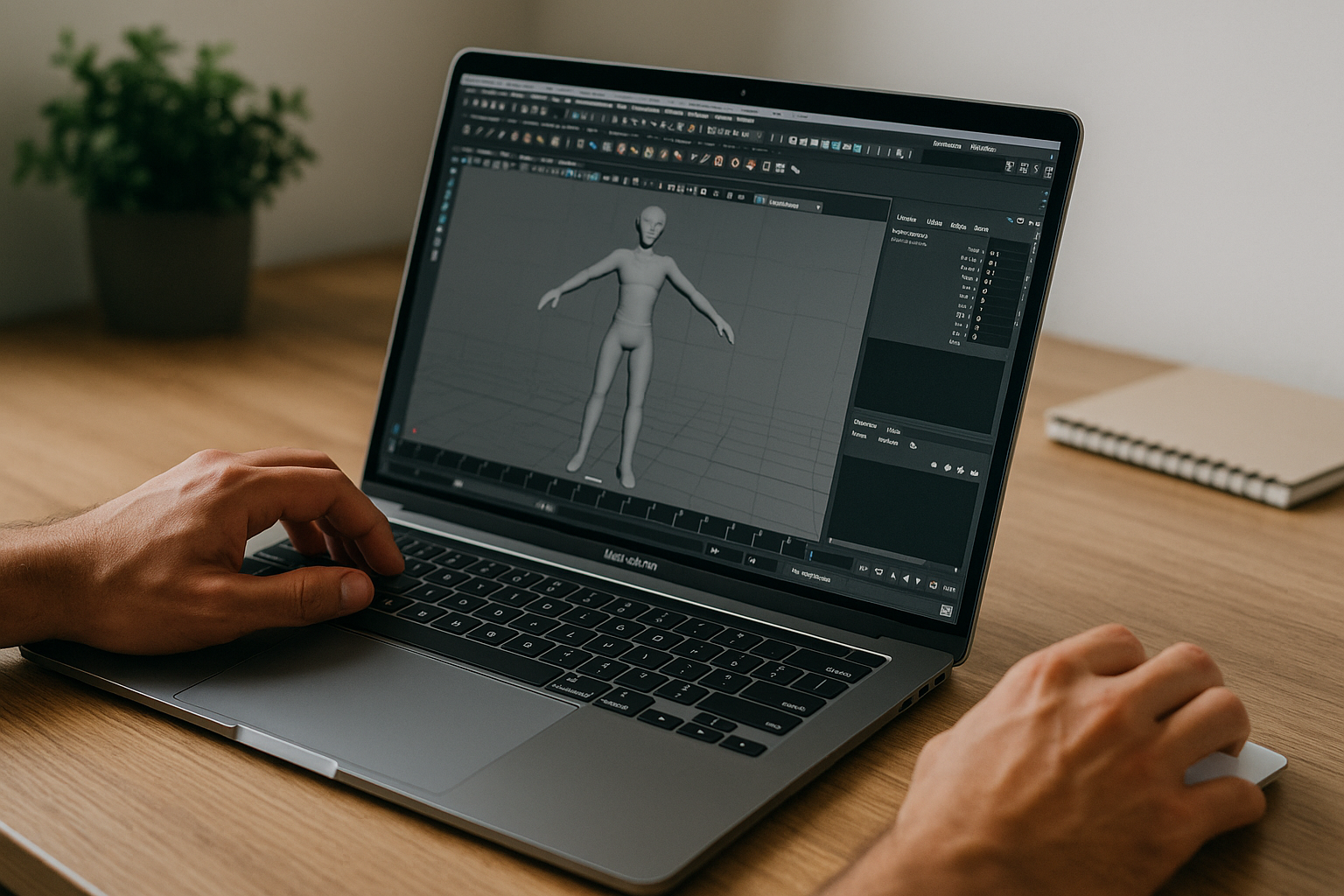
Copying toolsets to each Mac can drift over time, while shipping a workstation or relying on ad‑hoc copies risks mismatched exporters and render presets. A cloud Windows PC provides a consistent place to configure the required Maya version, shelves, USD/Alembic tools, and Arnold settings. You can access that environment from your studio Mac or MacBook without recreating the setup on each device. This gives artists a centralized working environment for client reviews and studio work without maintaining separate Maya installations on every Mac.
With a consistent Maya installation and project configuration, you can work on scenes, create playblasts, run lookdev tests, and prepare cache exports without rebuilding the software setup on each Mac. Actual rendering and export results still depend on the software versions, plugins, project settings, and pipeline configuration.
Aristeem for Autodesk Maya on macOS Pipelines
Aristeem provides a cloud Windows PC for professional software workflows. From a Mac, you can access the Windows environment, install the Maya version and plugins your project requires, configure shelves and scripts, and use your own licenses where required. Your local macOS installation remains unchanged, and your configured workspace is available when you return to it. For more details, see this Autodesk Maya on Mac workflow guide.
Conclusion: Autodesk Maya on Mac for Shot Reviews
Shot reviews, rig adjustments, and lookdev sessions depend on access to the right Maya version, project files, and production tools. A cloud Windows PC offers a way to access a configured working environment from a MacBook or studio Mac without recreating the software setup on each device. For a device-specific walkthrough, see working with Maya on a MacBook.


