


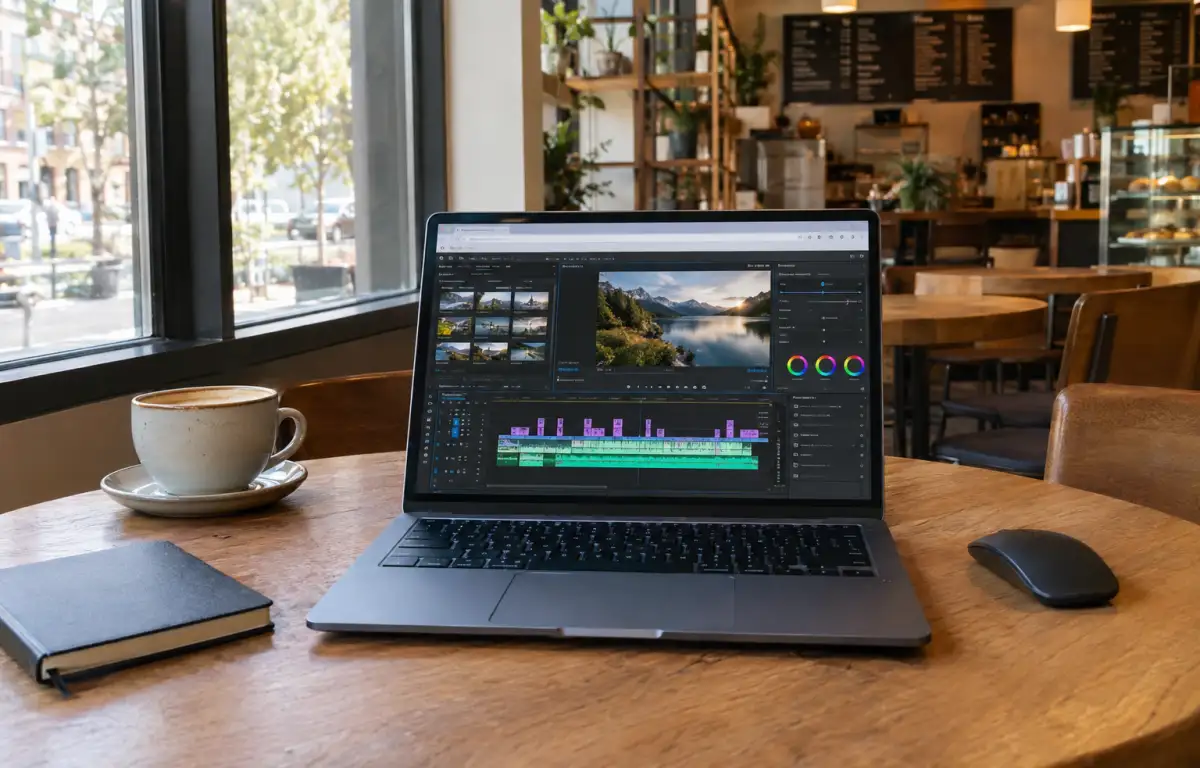
Premiere Pro software for commercials and YouTube delivery on the move
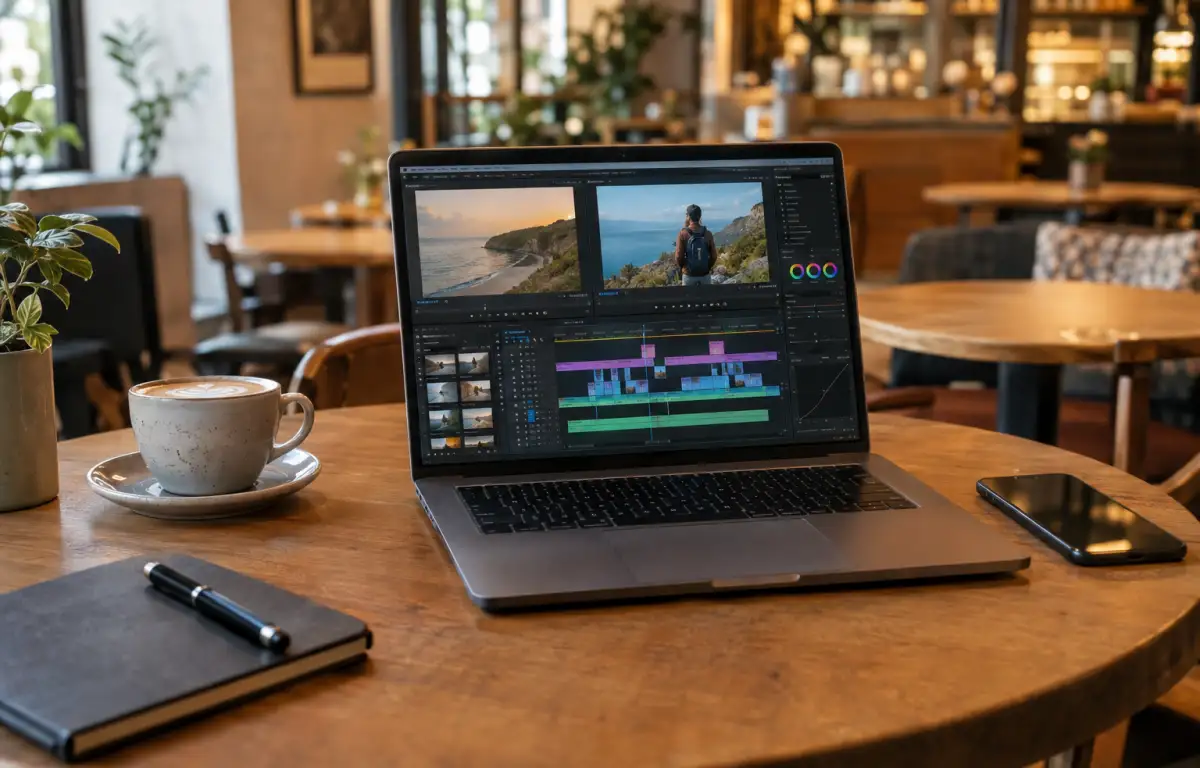
Deadlines stack: a 30‑second commercial plus a weekly YouTube episode due tonight. As the editor, you first confirm the exact Premiere Pro release the team standardized, then load the same MOGRT graphics pack, captioning extension, and LUTs used in look dev. Next, you install ProRes, DNx, and H.264/HEVC codecs, apply the shared keyboard layout, and lock color to Rec.709. After that, you open the sequence, relink proxies, drop approved MOGRTs, grade with the show LUT, and export ProRes masters and H.264 cutdowns. The whole flow relies on a consistent Premiere Pro setup that remains accessible across locations.
Requirements to keep Premiere Pro software identical across locations
Because that same commercial and episode travel from office to set to client rooms, the setup must remain precisely matched to avoid drift in graphics, color, or exports. In practice, the workflow needs:
- One locked Premiere Pro version across all machines.
- Identical Premiere Pro plugins and extensions (e.g., captioning, stabilization) with the same licenses.
- Consistent support for the required media formats, including ProRes, DNx, H.264, and HEVC.
- Shared Premiere Pro LUTs and Lumetri presets with Rec.709 project color settings.
- Matching MOGRT templates and the exact fonts used by design.
- Unified keyboard shortcuts, export presets, and sequence frame rate/size.
The open question is which environment reliably enforces all of this wherever you work.
Best way to run Premiere Pro software consistently everywhere
Meeting those requirements can be attempted with several approaches, yet each varies in how well it controls versions, Premiere Pro plugins, Premiere Pro codecs, Premiere Pro LUTs, fonts, and presets. A comparison makes clear why a cloud Windows PC best preserves one unchanging environment for Premiere Pro software across office, set, client sessions, and travel.
| Approach | Capabilities | Complexity |
|---|---|---|
| Manually mirror local machines | Align app version; copy plugins, codecs, LUTs, MOGRTs, fonts, presets; prone to drift and OS updates | High, ongoing upkeep |
| External SSD with portable assets | Carry LUTs, MOGRTs, export presets, shortcuts; cannot enforce app version, system codecs, licensed plugins | Medium |
| Account-based settings sync | Syncs preferences/shortcuts; not full control of plugins, codecs, LUTs, exact app build | Low–Medium |
| Cloud Windows PC (one persistent machine) | One persistent Windows environment with the selected Premiere Pro version, installed plugins, required media components, LUTs, fonts, and presets accessible from different devices. | Initial setup, then low |
How the same Premiere Pro plugins, codecs, and LUTs must follow you
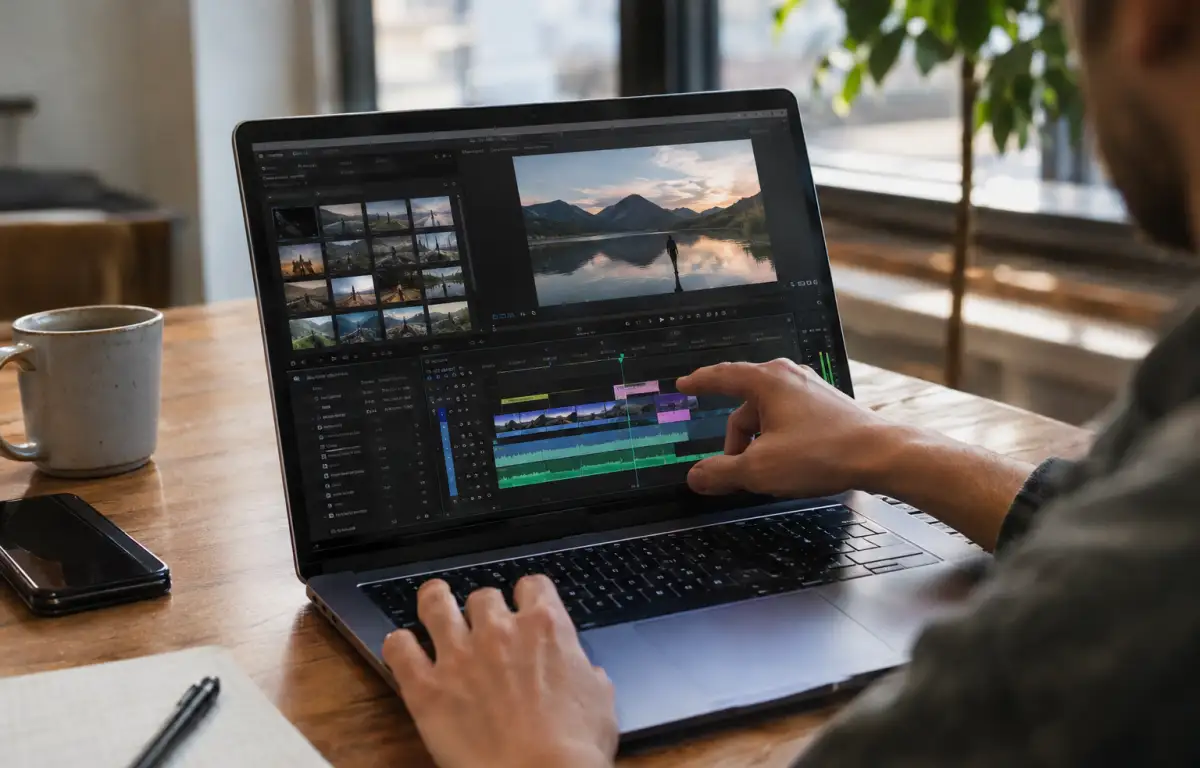
When that single configuration moves through the day — office review, on‑set pickups, a client session, a flight—the project must reopen at the exact frame it was left. The identical captioning and stabilization Premiere Pro plugins, the same MOGRT package and fonts, the approved LUT, and the Quick Export presets must appear unchanged. Even keyboard shortcuts and Rec.709 sequence settings need to match so pacing and color stay locked. That points to one persistent place you can open from any device.
Aristeem cloud Windows PC for consistent Premiere Pro software
That persistent environment is what Aristeem has refined for more than two years — providing access via a cloud Windows PC to professional tools while learning from users and expanding flexibility. Today you control a virtual Windows machine, and we continue testing new options to increase adaptability. Applied here: install the exact Premiere Pro version once, add required plugins, codecs, LUTs, fonts, and utilities, lock project settings, and open the same setup anywhere through the Premiere Pro editing environment.
Keep Premiere Pro software uniform from office to set to travel
Commercials and weekly episodes rely on Premiere Pro software to ingest media, apply shared MOGRTs and LUTs, and output ProRes masters with H.264 cutdowns. That workflow depends on a locked version with matching plugins, codecs, fonts, color settings, and shortcuts wherever you work. Keeping the setup on a cloud Windows PC lets you access the same installed software, plugins, assets, and project settings from different devices, providing a consistent Premiere Pro online workflow on the device you already use.


