


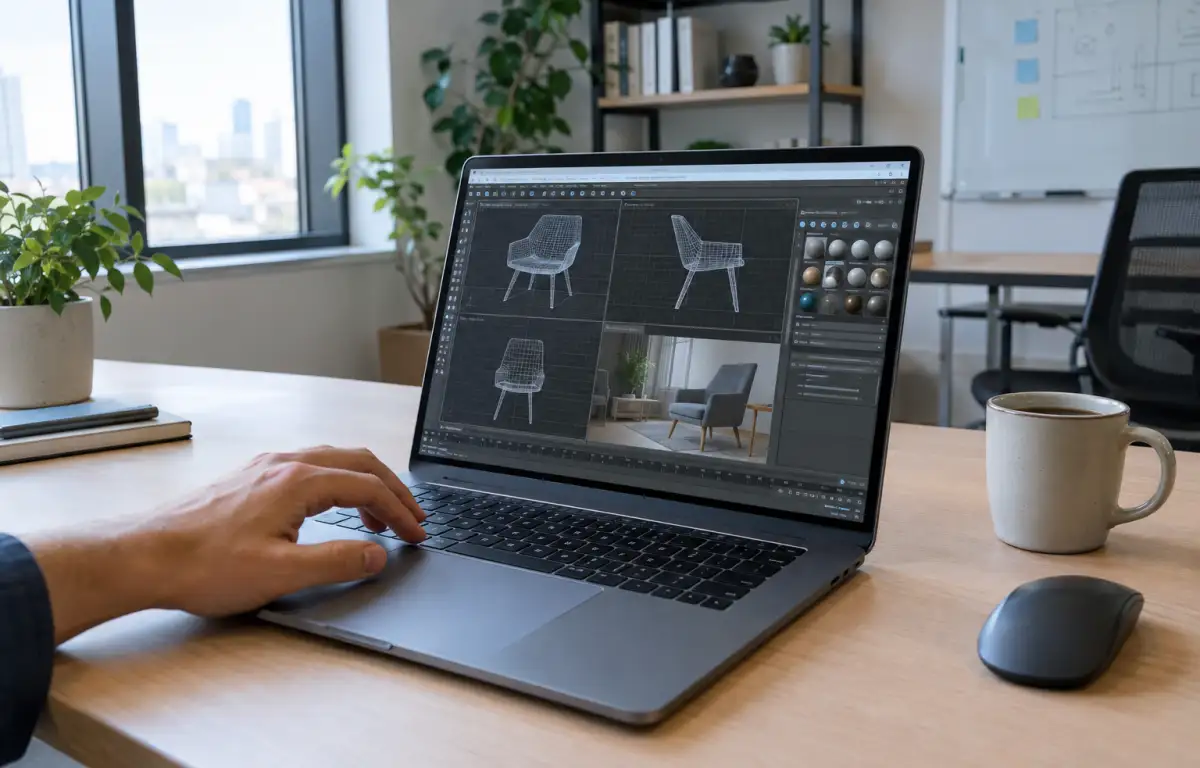
On-Location Review With 3d Max Software
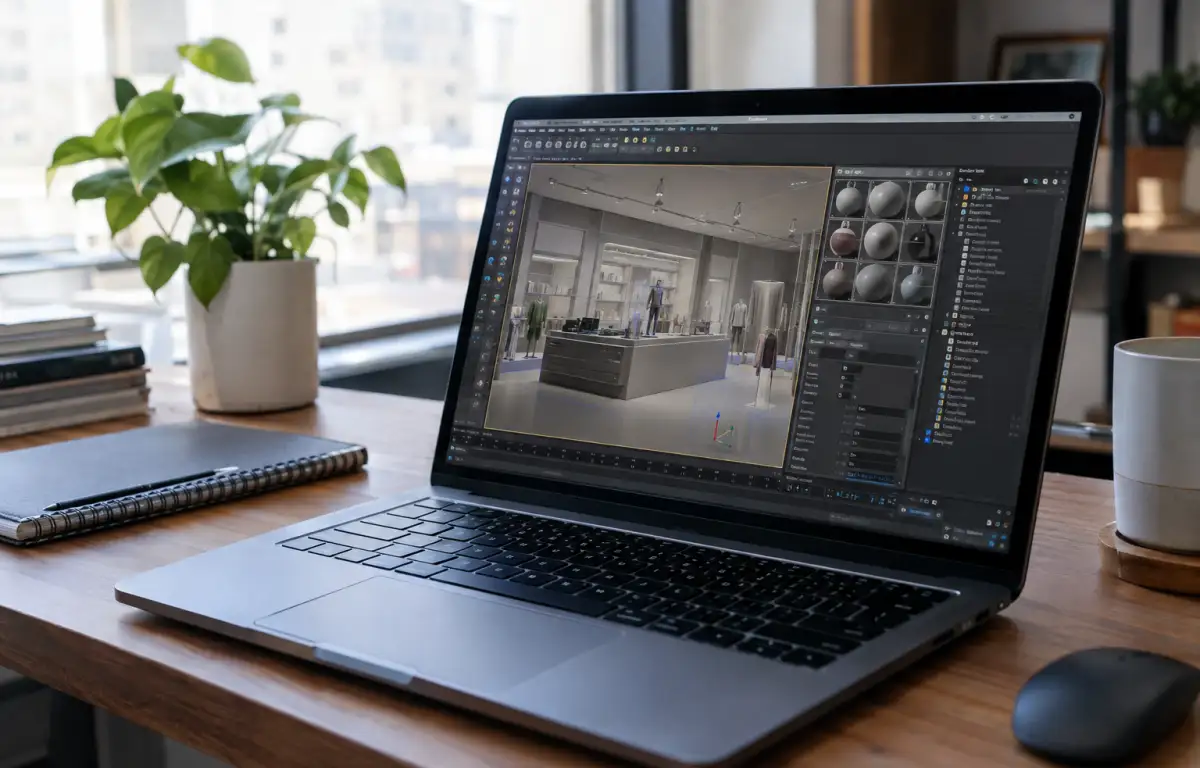
The shot is locked for a retail campaign, but the final review takes place at the client’s location rather than in the studio. The CG supervisor needs to open the latest 3ds Max scene, check materials and camera framing, test a few adjustments, and show the updated result before the client signs off. The challenge is getting meaningful work done away from the main workstation, without delaying approval or moving the entire production setup.
Requirements for Reliable 3ds Max Rendering
Before the review, the supervisor needs to confirm that the scene opens with its required assets available. Missing textures, unresolved proxies, or unavailable Alembic caches can make the client review unreliable. The team should also check the active camera, materials, lighting, and color management so that the preview reflects the intended shot rather than a partially loaded scene.
A Single Windows Desktop for 3ds Max Rendering Anywhere
Because the device must host that entire setup, a Windows PC in the cloud delivers the same desktop everywhere you work. You install the exact 3ds Max release with your license, add the chosen render engine and 3ds Max plugins, drop MacroScripts and presets into the same folders, and lock System Units, OCIO/ACES, and gamma once. Asset and cache paths stay consistent by using the same drive letters and project root, so textures, proxies, and Alembic resolve. You can open this PC from your device, even through a standard browser if preferred, and pick up renders mid-shot. That’s precisely the environment Aristeem provides.
During the review, the supervisor can adjust camera framing, inspect material response, make small lighting corrections, and run test or region renders to compare alternatives with the client. Once the changes are approved, the updated scene and related project files can be saved for the next production step.
Aristeem for Consistent 3ds Max Plugins and Paths
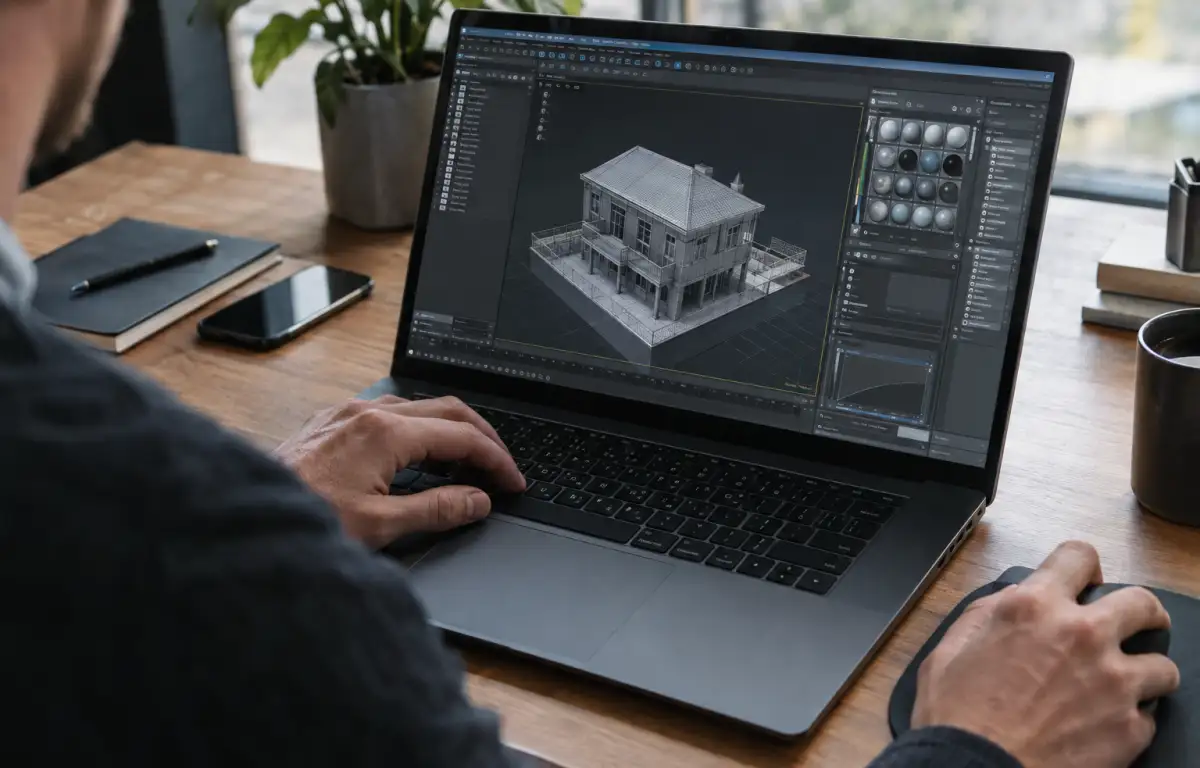
Aristeem provides access to a Windows PC in the cloud through a browser. Choose a suitable configuration, connect to the desktop, and install the 3ds Max version, plugins, and other tools required for the project. You can use your own software license when required. The cloud PC does not replace the operating system on your local device; it gives you a separate Windows environment for opening and working with professional software. This lets a CG supervisor access the project from a client location without setting up another physical workstation. For program-specific guidance, see our material on the 3ds Max cloud rendering workflow.
Keep 3d Max Software Consistent Everywhere
The production goal is clear: scenes open cleanly and renders match, regardless of office, studio, or field. That demands one aligned environment—specific 3ds Max build, render engine and 3ds Max plugins, unified units and OCIO/ACES, consistent paths, and identical scripts and presets. A Windows PC in the cloud fits because the same desktop travels with you, so assets resolve and frames stay predictable from layout to delivery. If that is your target workflow, explore working with demanding 3ds Max projects on a cloud Windows PC and keep teams synchronized under a single, portable setup.


