


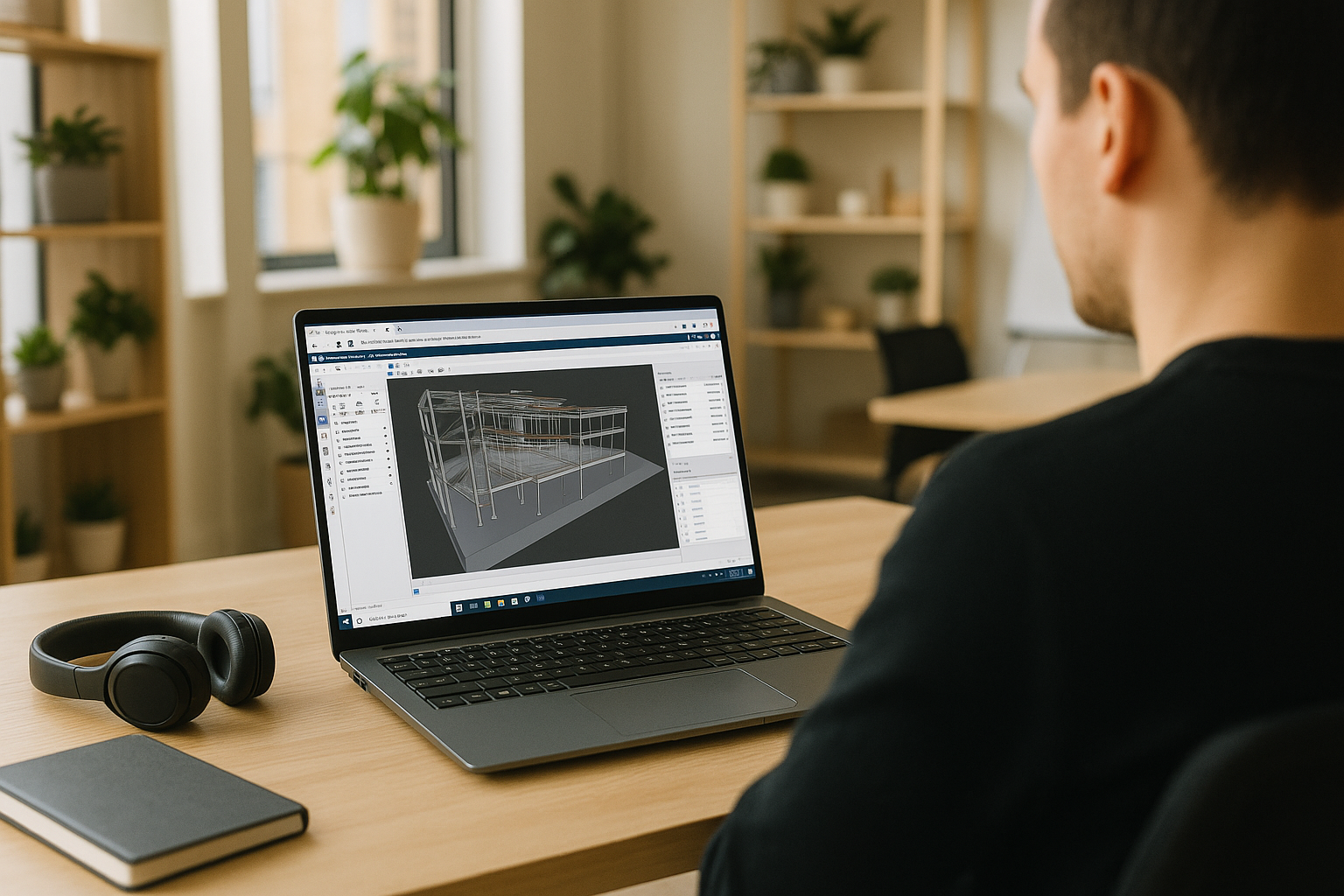
BIM Coordination in Autodesk Navisworks on a Full Windows Desktop
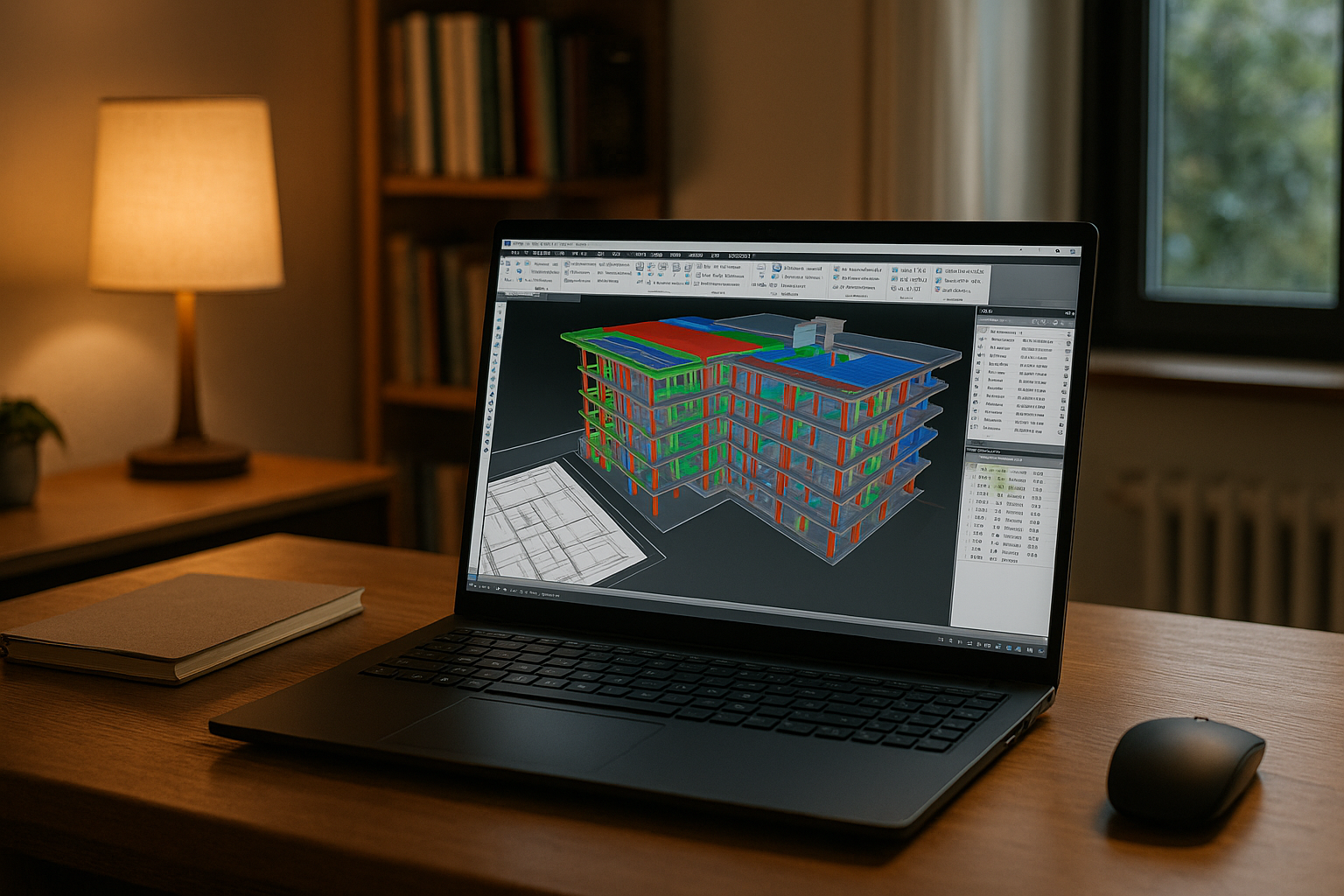
With a weekly coordination review approaching, a BIM coordinator preparing a complex hospital expansion needs to bring architectural, structural, and MEP models together in Autodesk Navisworks Manage. The review depends on project-specific clash rules, search sets, Quantification catalogs, compatible add-ins, and reliable references to shared model files. When several teams work with different software versions and project standards, keeping these settings consistent becomes just as important as reviewing clashes and sharing findings.
Workflow Requirements for Navisworks Manage and BIM Coordination
Company clash rulesets and search sets depend on consistent project settings, compatible software versions, and correctly configured add-ins. When projects require different Navisworks Manage releases, coordinators must check compatibility with their Revit/IFC/DWG workflows, add-ins, and ACC/BIM 360 connections. Consistent drive mappings and UNC paths also help keep model references aligned with project files. The NWF must reference the same folders every session, Quantification needs standard catalogs, BCF/BIMTrack sign-ins should persist, and Timeliner links to P6 or Microsoft Project must remain intact. Large federated models also make it important to validate hardware capacity, graphics drivers, and model references before coordination reviews.
Keeping Autodesk Navisworks Consistent Across Places and Devices
BIM coordination often continues across the office, home, client meetings, and site reviews. To resume work without rebuilding the setup, coordinators need the same project files, search sets, Quantification catalogs, clash test templates, and schedule references available in each working session. A persistent Windows environment can keep these resources together, while access from different devices lets the coordinator return to the same workspace instead of recreating the configuration on another computer.
Why a Cloud Windows PC Fits Navisworks Manage Workflows
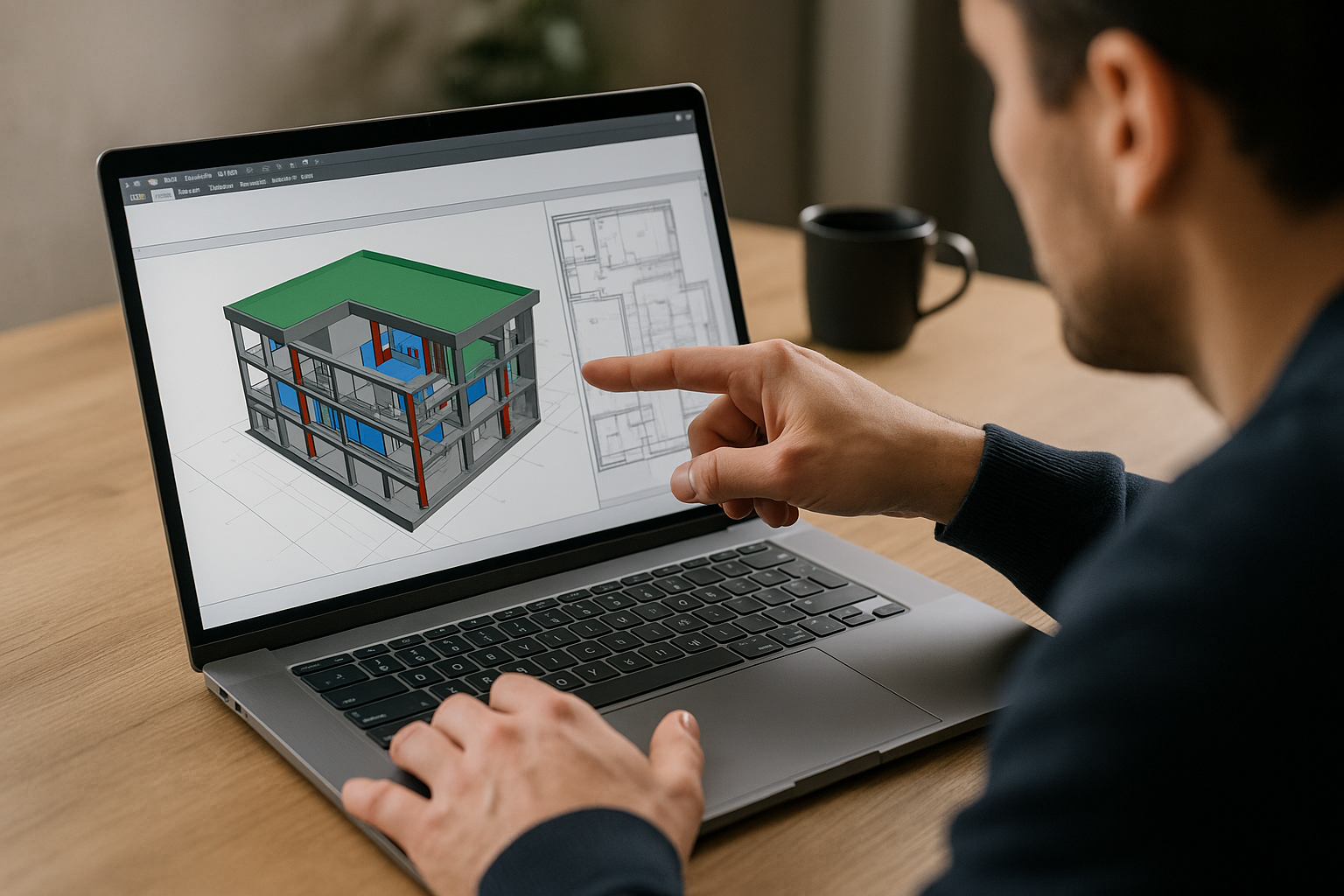
A cloud Windows PC gives BIM coordinators a workspace they can configure for their project requirements. Install the required Navisworks Manage release, add compatible tools, and organize project resources and model references in consistent locations. You can also configure schedule links and supporting workflows where the relevant software and integrations are compatible. Software licenses remain subject to their respective terms, and the required applications and add-ins must be installed and configured for your projects. This approach helps keep the working environment consistent when you access it from different devices.
Aristeem for Navisworks Manage Autodesk on a Persistent Windows PC
Founded in 2024, Aristeem began as a cloud service for professionals running demanding tools in engineering, design, and analysis. We study real coordination needs and refine the service continuously. Today it’s a Windows PC in the cloud you control — without replacing your device’s OS — while we test new options to expand flexibility. For BIM coordination, you can configure the Windows environment with the Navisworks Manage release, compatible add-ins, project resources, and file paths your team requires, subject to software licensing and integration requirements. See the Navisworks Manage setup guide for more information about running the software in a cloud Windows environment.
Coordinate BIM With Navisworks Manage Autodesk on a Cloud Windows PC
BIM coordination depends on more than opening a model: project settings, file references, issue-tracking workflows, and software compatibility all need attention. With Aristeem, you can access a persistent cloud Windows PC from your own device and configure it for your Navisworks Manage workflow. Explore the Aristeem cloud Windows PC to learn more about accessing professional Windows software across devices.


