


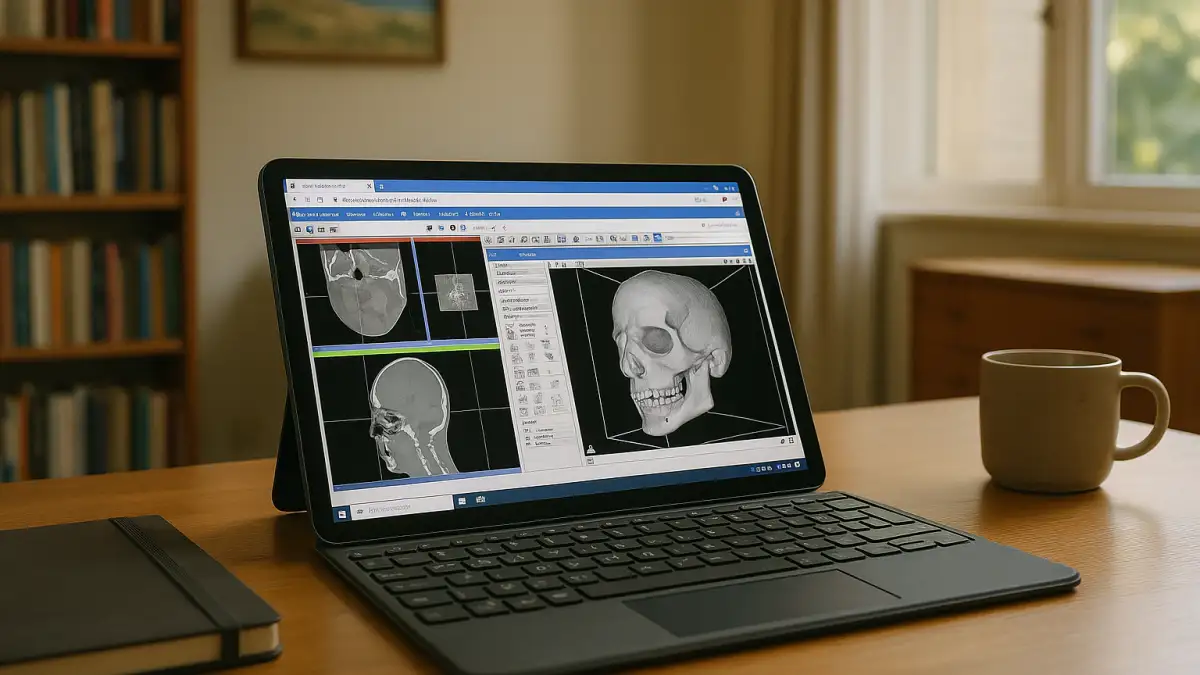
Using 3D Slicer on Android for On-Site Imaging Reviews
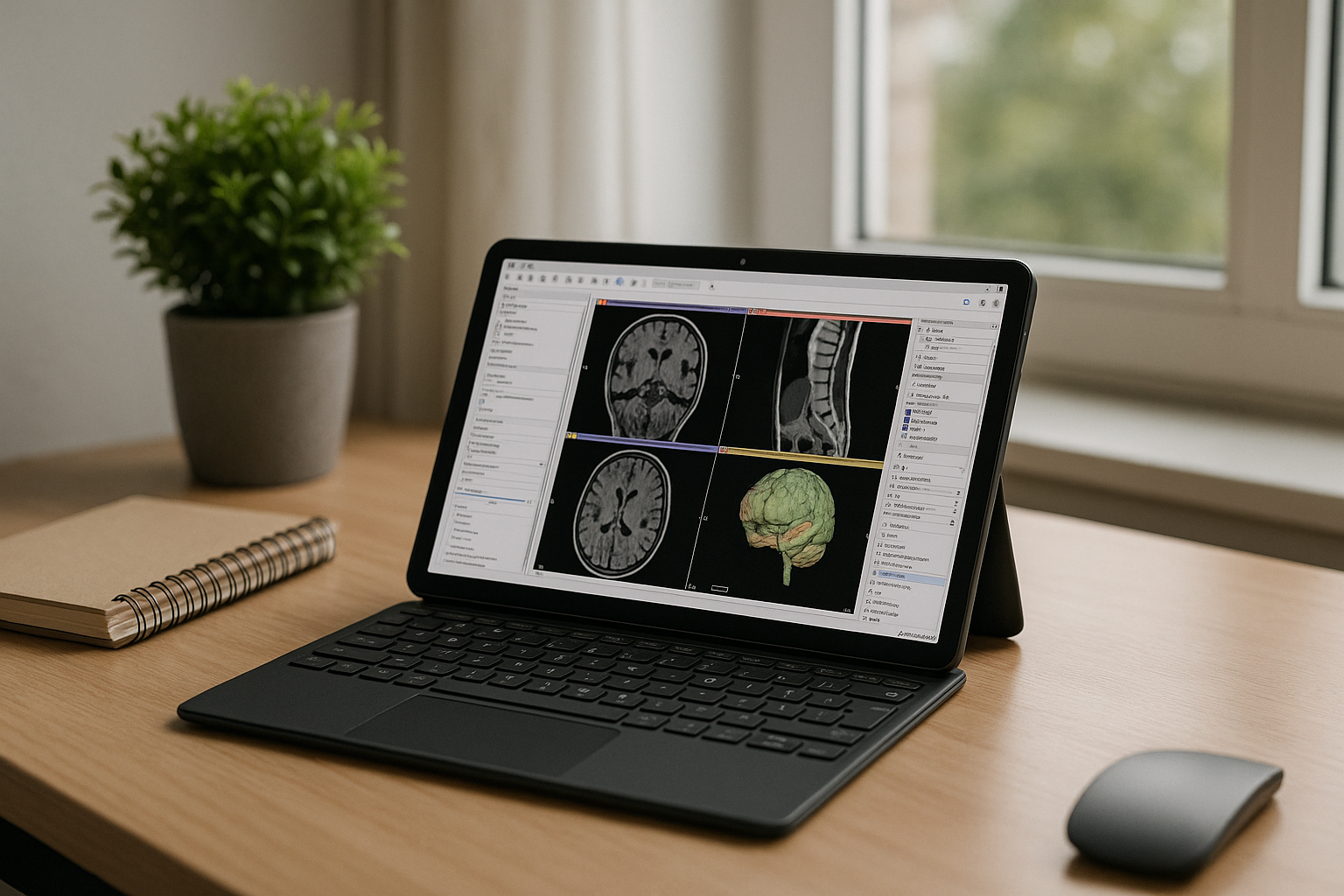
The morning site check‑in at a satellite clinic calls for fast DICOM sanity checks, precise slice measurements, and a couple of segmentation touch‑ups on an Android tablet. As the clinical imaging specialist on the study, you need the exact environment you use at your desk to repeat measurements and adjust labels consistently. Before the review, you need the same 3D Slicer release, extensions, segmentation presets, and project files used at your workstation. Since 3D Slicer has no native Android version, accessing the desktop application from an Android tablet requires a remote Windows environment that supports your workflow.
Workflow Requirements for 3D Slicer Segmentation Android
Those on‑site measurements and edits demand the exact software environment used during analysis. The workflow depends on a specific 3D Slicer release, compatible extensions, required Python tools, and consistent Segment Editor presets. DICOM import settings, Markups conventions, and project files must also remain consistent so measurements and segmentation edits can be compared across sessions. Consistent DICOM import rules, a shared DICOM database path, Segment Editor presets, markups naming conventions, and custom keymaps ensure that distances, volumes, and labels remain comparable across sessions. The Android tablet therefore needs access to this full configuration — same version, same extensions, same presets, and the same project files.
Keeping DICOM Review on Android Consistent Across Locations
Because those extensions, presets, and scripts must match exactly, the same work has to continue unchanged as you move from office to clinic, lab to ward, and between meetings. Your DICOM volumes, segmentation nodes, parameter sets, and export options need to open at the exact state they were saved, with the identical 3D Slicer release and extension versions. A local install on one workstation cannot travel with you, and copying settings between machines risks drift that breaks reproducibility. A cloud Windows PC can keep your 3D Slicer installation, extensions, scripts, and project files in one environment that you can access from an Android tablet. Before using it with clinical imaging data, verify that the remote-access setup meets your institution’s data-protection and access-control requirements.
How to Access 3D Slicer on Android Through a Cloud Windows PC
With a Windows PC in the cloud, the entire setup required for 3D Slicer for Android is ready wherever you are. You install the exact 3D Slicer release, lock the extension set from the Slicer Extensions Catalog, and keep Segment Editor presets, Markups settings, and DICOM import rules intact. Your Python environment and measurement scripts stay pinned, and project files remain in the same workspace, so volumes, segmentations, and exports behave consistently. From the Android tablet, you can connect to the remote desktop and test the interactions your workflow requires, including navigating DICOM slices, placing fiducials, editing segmentations, and exporting results. Check pointer or pen compatibility, display quality, responsiveness, and file access before relying on the setup for a particular review.
Aristeem for a Stable 3D Slicer Android Workflow
Founded in 2024, Aristeem provides professionals with access to demanding software for engineering, design, and data analysis. The service gives you a Windows PC in the cloud without replacing your device’s OS. For 3D Slicer, you install your chosen release, keep extensions, Python tools, and presets consistent, and access the same desktop from Android. See our guide to running 3D Slicer software on a cloud PC for more details.
A Dependable Path to 3D Slicer for Android
A cloud Windows PC offers a way to access the desktop version of 3D Slicer from an Android tablet while keeping your installation, extensions, and project files in one environment. Confirm that remote interaction and data handling meet your project’s requirements before using the setup for imaging reviews.


