


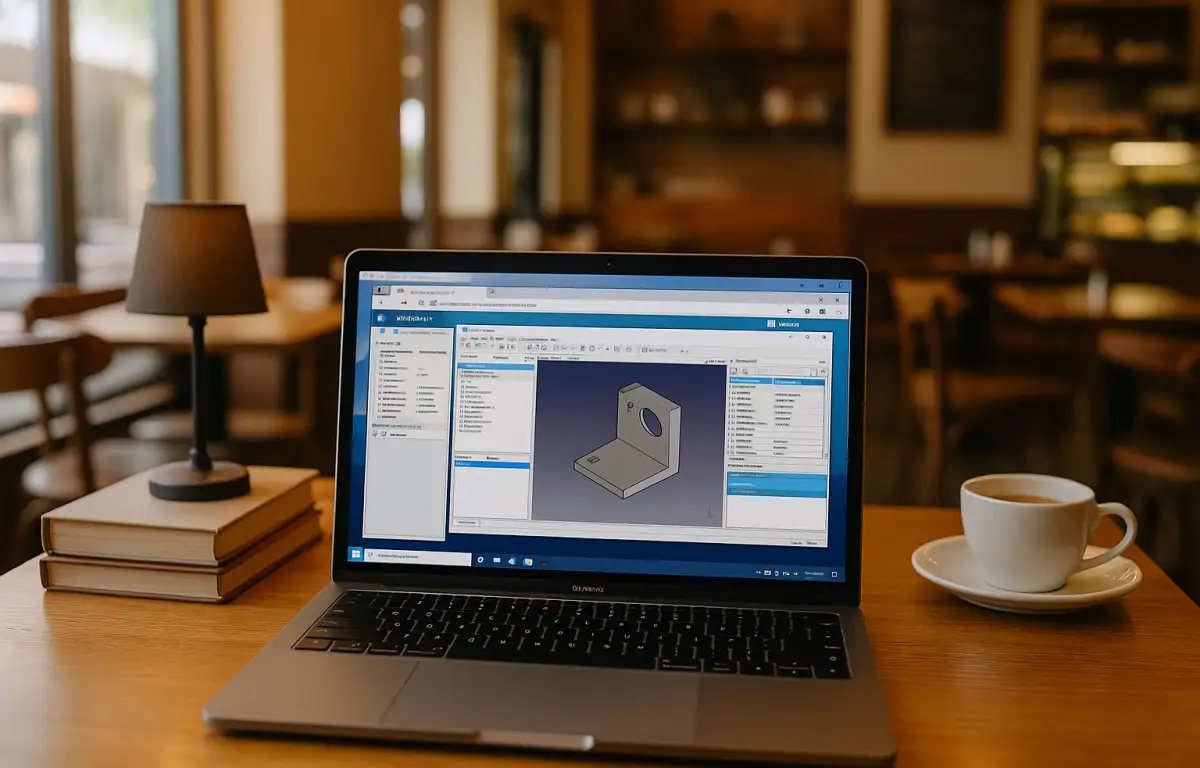
Parametric Workflows in FreeCAD Online, Step by Step
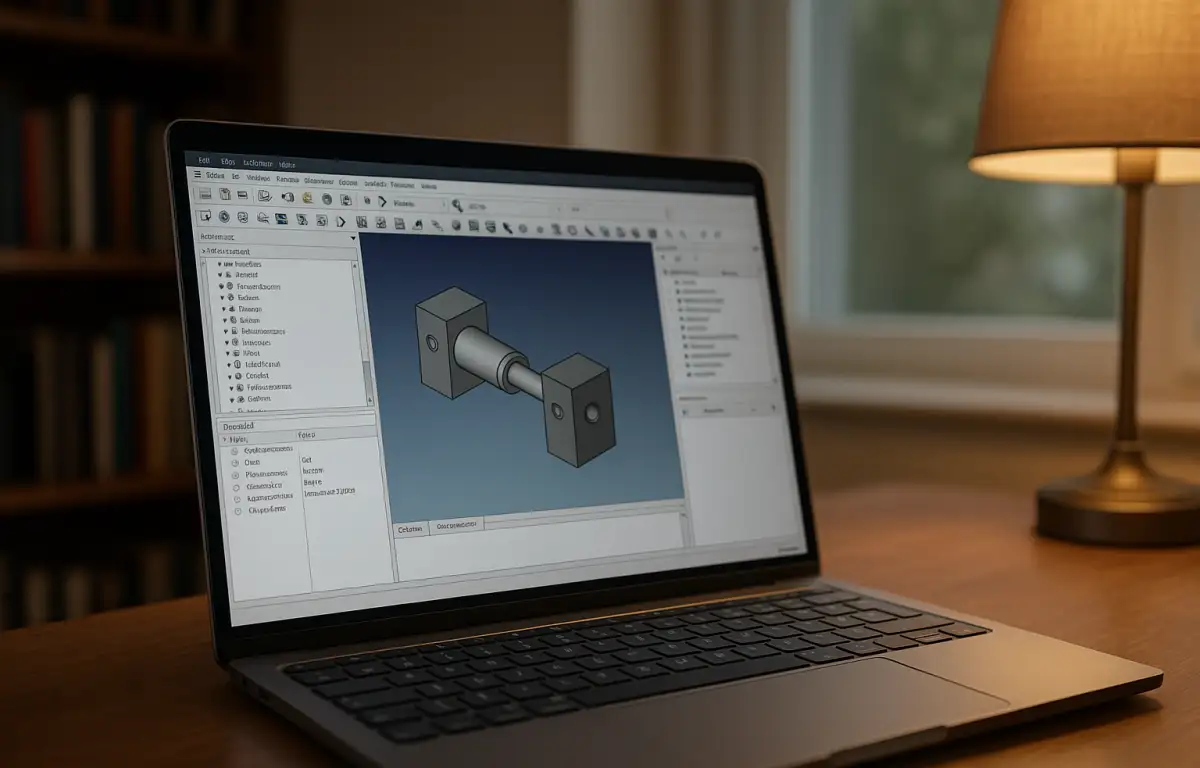
A client review is set for tomorrow, and the parametric assembly must update cleanly with new supplier parts. As the mechanical lead, you first confirm the FreeCAD version, install Assembly4 and SheetMetal, add the required macros, load TechDraw templates, and configure Path post-processors. Only then do you open the project, position parts using Assembly4 LCS references, regenerate sheet-metal geometry, update TechDraw views, and prepare CAM toolpaths. When you move between the office, home, and client sites, keeping the same working environment becomes essential.
What a FreeCAD Online Workflow Requires
That assembly, TechDraw, and CAM sequence relies on the same FreeCAD version, the same Assembly4 and SheetMetal sources, and the same macro folder path. Python libraries, post-processors, templates, and fonts must match, and preferences like Units schema, Draft grid, and Path output folders must be identical. Project-relative paths should resolve exactly so sketches, bodies, and toolpaths do not break when the project opens in a different place.
These elements are not optional because parametrically linked parts, detail drawings, and CAM posts are calibrated to this setup. Professionals who use FreeCAD regularly standardize workbenches, macros, and libraries to protect assemblies mid-stream. Teams that share project files cannot compromise on version or plugin parity when deadlines are tight. The question becomes which environment can preserve all this on every device you work from.
Researching a Consistent FreeCAD Cloud PC Approach
Given those requirements, the same assembly must open identically at the office, at home, and on a client site. It needs the identical FreeCAD build, Assembly4 and SheetMetal sources, macros, Python libraries, TechDraw templates, and Path post-processors, plus the same output presets. A single local machine cannot follow you, so device changes often mean mismatched libraries or paths. A cloud Windows PC lets you maintain FreeCAD, your installed workbenches, project files, and preferences in one persistent environment. You still need to configure the required add-ons and dependencies, but you no longer have to recreate the entire setup on every device you use.
Best Way to Run FreeCAD Online Everywhere
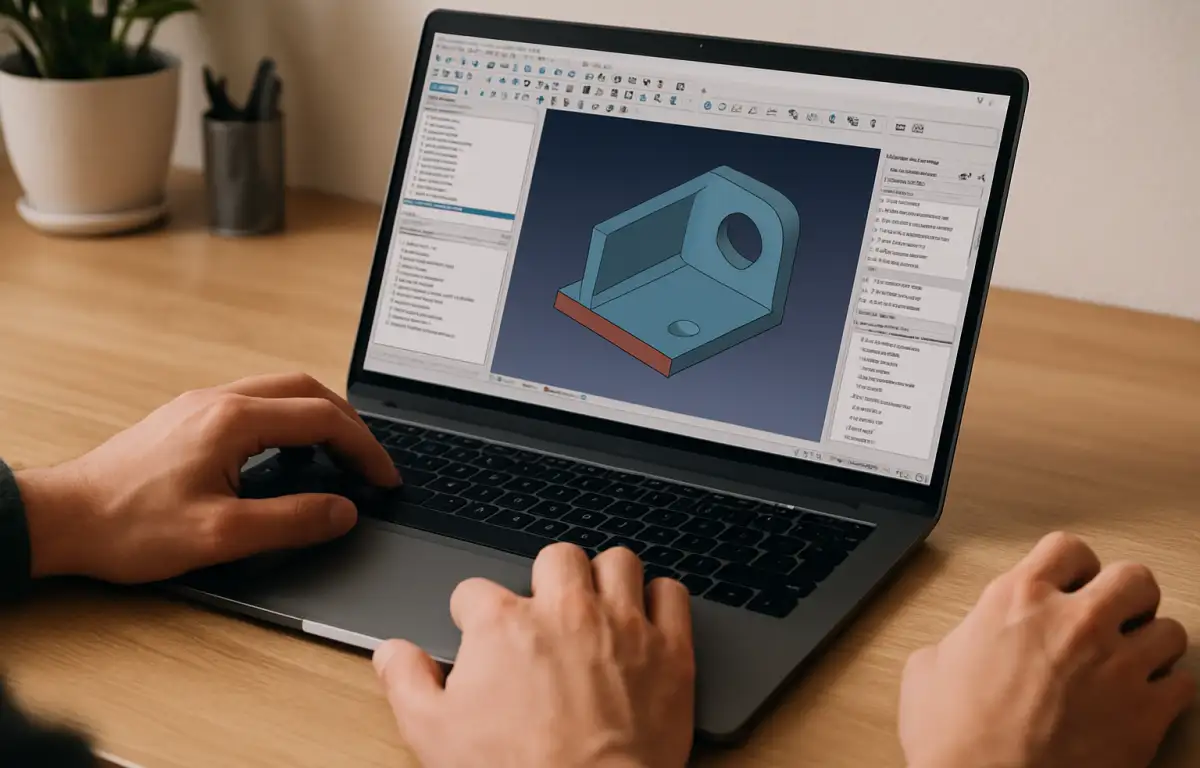
You can try cloning the setup across multiple local PCs, but drift appears as plugins update or paths differ. You can carry portable configs, yet drivers, fonts, or Python packages still diverge. Centralizing on a cloud Windows PC keeps one canonical FreeCAD install, one Assembly4/SheetMetal set, one macro and library path, and one TechDraw and Path configuration. Users who move between shop floor, office, and client rooms keep continuity: open the same machine, get the same outputs, and export posts that match yesterday’s run.
Aristeem Delivers a Stable FreeCAD Online Environment
For more than two years, Aristeem has focused on cloud access to professional software for engineering and design, studying user needs and evolving the service. Today it offers a virtual Windows machine in the cloud so you keep your device’s OS while working in a familiar Windows desktop. We keep testing new options to expand flexibility. For installation options and alternative ways to access FreeCAD, see our FreeCAD download guide.
FreeCAD Online for Predictable Drawings and Toolpaths
The work is clear: open the parametric model, update Assembly4 placements, regenerate SheetMetal, refresh TechDraw, and export CAM posts — on any device you happen to use. That demands the same version, the same workbenches and macros, the same libraries and preferences, and project-relative paths that resolve identically. A cloud Windows PC preserves that exact environment, and Aristeem makes it practical to keep one FreeCAD build with you at all times. To start working with FreeCAD in a persistent cloud Windows environment, explore FreeCAD Online with Aristeem.


