


Online Lightroom: How to Edit Photos in Your Browser

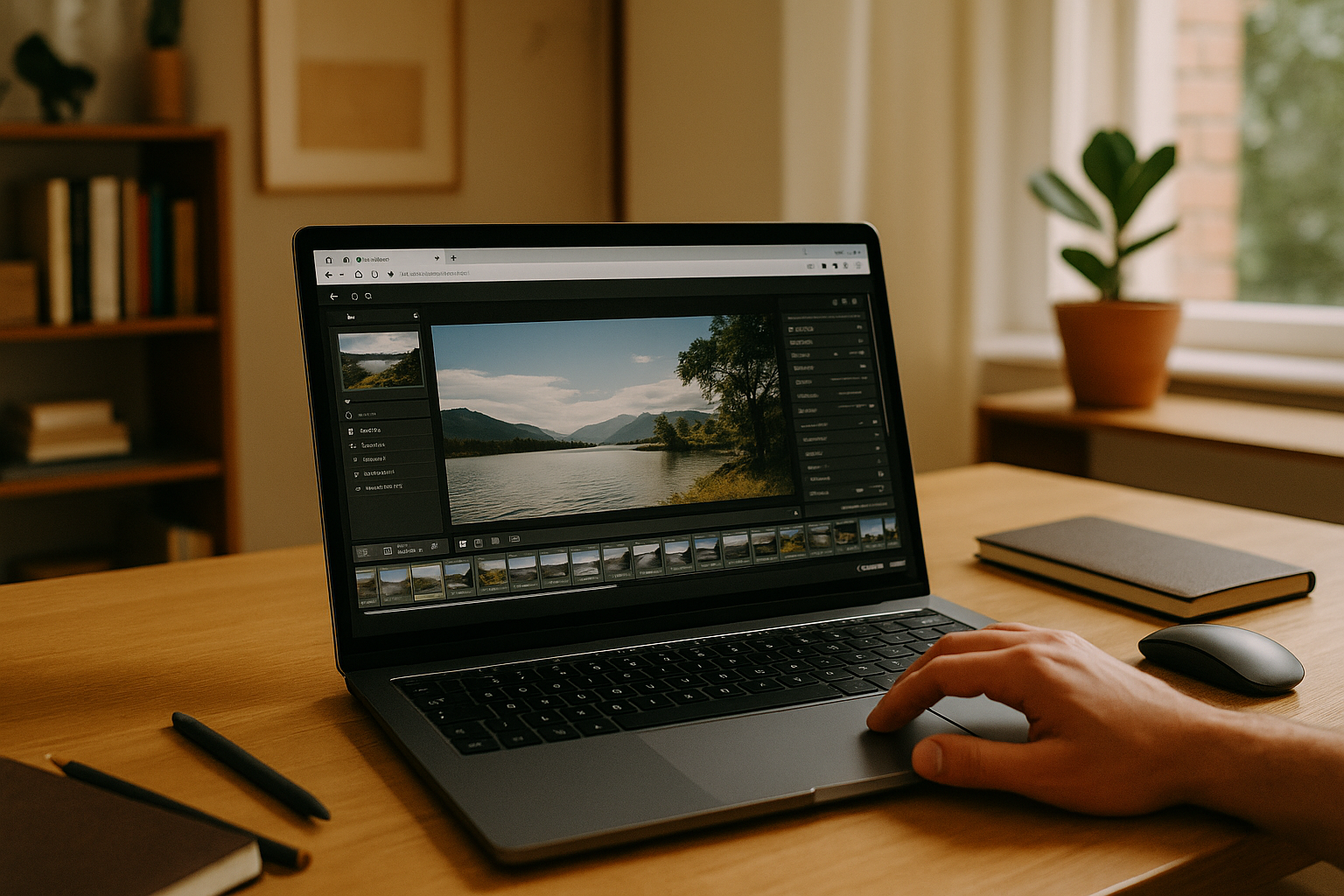
Lightroom online lets you edit photos through a browser without relying on the full desktop application installed on your device. Adobe’s web-based Lightroom is designed for cloud-based photo access, editing, and syncing across devices. For quick adjustments and working with photos stored in the Adobe cloud, this can be enough. But photographers who rely on Lightroom Classic may need its desktop catalog, local file workflows, plugins, and other features that the web version does not provide. In that case, a browser-accessible Windows environment offers another way to use Lightroom Classic online while keeping the desktop workflow.
What You Can Do With Lightroom Online
For many photographers, Lightroom Classic is the system of record for images, metadata, and visual decisions. Your collections, keywords, tethered capture setup, soft-proofing, and print templates all live there. So do your custom presets, profiles, color workflows, and plugins that clean noise, create looks, and export to clients exactly as promised.
Switching to a different editor mid-project sounds reasonable until you map every preset, profile, export target, and plugin behavior to a new tool. Professionals who use Lightroom Classic regularly face re-learning shortcuts, rebuilding catalogs, and still risking mismatched color or output. Recreating the work just to keep moving is slower than keeping direct access to the original environment. Keeping access to the original software is more practical.
Where Lightroom Online Has Limitations
Lightroom online is convenient for cloud-based editing, but it does not fully replace Lightroom Classic. Classic is built around a desktop catalog and local file management, giving photographers more control over how images, folders, metadata, and editing resources are organized. It also supports third-party plugins and workflows that depend on direct access to files and system resources.
For photographers who already rely on Classic catalogs, presets, profiles, and plugins, moving an entire workflow to Lightroom online can mean changing how projects are stored, organized, and processed. When the full desktop workflow matters, the better approach is to keep using Lightroom Classic rather than rebuild an established workflow around a web-based editor.

Aristeem: Lightroom Classic Online Without Compromise
With Aristeem, Lightroom Classic runs on a virtual Windows PC that you access through your browser. You can install Lightroom Classic, open your existing catalogs, and use your presets, profiles, and supported plugins in the same Windows environment. If Adobe requires a license, you sign in with your own account. This lets you use the full desktop application from devices where installing Lightroom Classic or Windows is not practical, including Mac, Linux, Chromebook, and supported tablets. For more details, see our guide to using Lightroom online without installation.
Choosing the Right Lightroom Online Workflow
If you need the real Lightroom Classic environment without depending on a specific machine, a browser-based Windows desktop is the most straightforward path. It keeps your catalogs intact, respects your presets and profiles, and supports plugins and modules that the web app lacks. To understand how to access Lightroom Classic through a browser-based Windows environment while preserving your established workflow, explore the approach and continue working without changing tools.


