


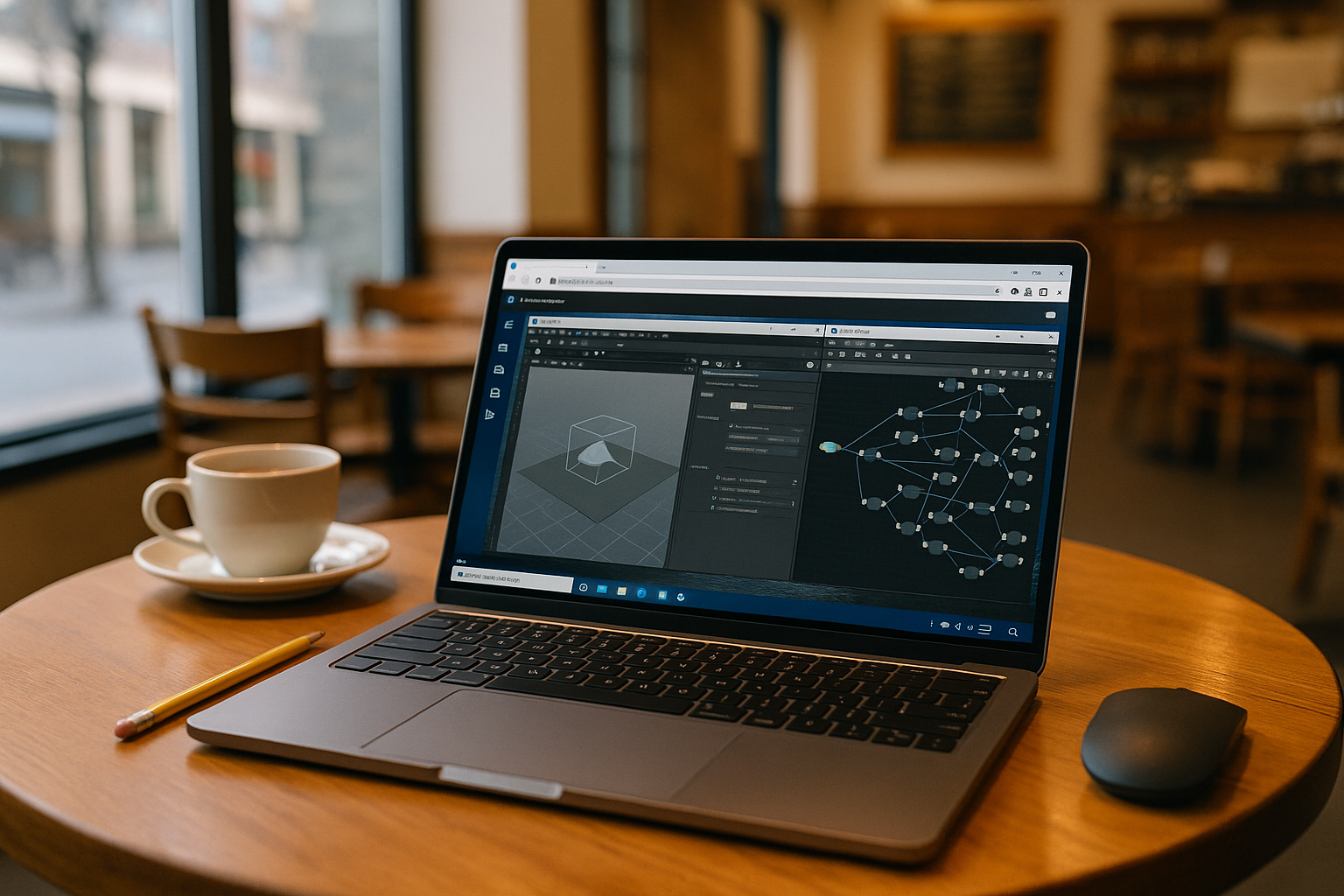
When Houdini 3D Won’t Run Smoothly Locally
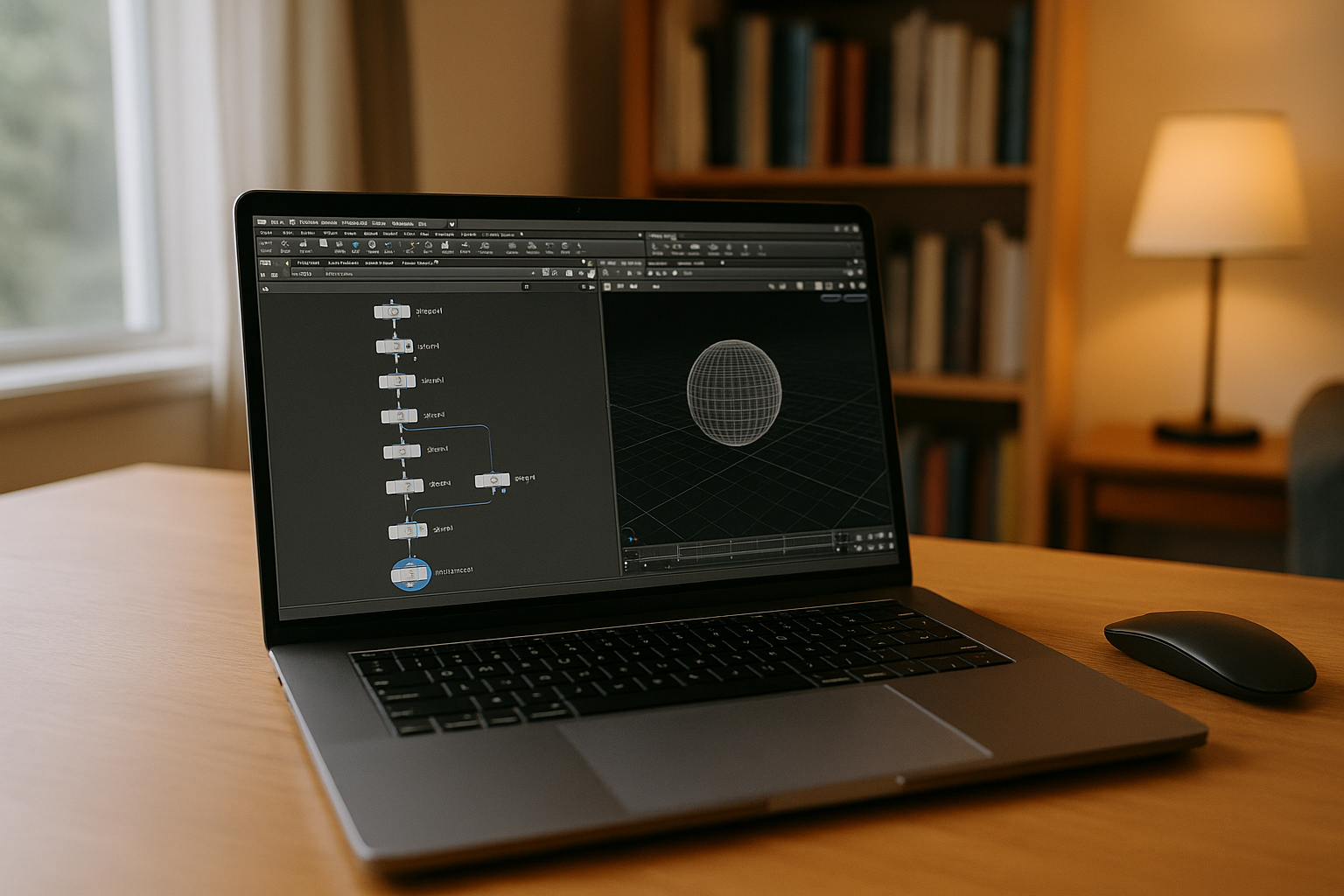
Scenes can become sluggish, viewports may lag, and Pyro, FLIP, or Vellum simulations can take much longer than expected when Houdini 3D pushes a local computer beyond its limits. Large node networks, complex geometry, high-resolution caches, and demanding viewport settings can quickly expose CPU, RAM, or GPU bottlenecks. Driver problems or an incompatible Houdini build can add another layer of instability, turning routine iteration into waiting, troubleshooting, or repeated restarts.
Check Your Houdini 3D Scene Before Blaming the Hardware
Before replacing a computer, check whether the slowdown comes from the scene itself. Heavy geometry, dense node networks, high viewport quality, large caches, and active simulations can all increase the load on Houdini 3D. Lowering unnecessary viewport detail, reviewing active nodes, and checking how much CPU, RAM, and GPU memory the scene uses can help identify the actual bottleneck.
If the same project remains slow after these adjustments, the local hardware may simply be reaching its limits. A faster GPU can improve viewport-heavy work, while additional RAM can help with larger scenes and simulations. CPU performance also matters for many Houdini operations, so upgrading one component does not automatically solve every performance problem.
Check GPU Drivers and Houdini 3D Compatibility
Performance problems are not always caused by insufficient hardware. GPU driver changes, Houdini version differences, and third-party plugins can also affect viewport behavior or simulation stability. If a project worked normally before an update, compare the current Houdini build and GPU driver with the configuration that previously worked.
Keeping a known working Houdini 3D configuration can make troubleshooting easier. If the problem appears only in one project, compare its scene complexity, plugins, caches, and viewport settings with a simpler file before changing the entire workstation setup.
When Local Hardware Is Still the Bottleneck
Some Houdini 3D workloads simply exceed what a local laptop or desktop can handle comfortably. Large simulations, complex procedural scenes, high-resolution caches, and GPU-intensive viewport work can require more resources than the current machine provides. At that point, repeated configuration changes may offer limited improvement.
A virtual Windows machine can be a practical alternative when you need Houdini on more capable hardware without replacing the operating system on your local computer. You can access the workspace through a browser while the application runs on the cloud machine, shifting the main CPU, RAM, and GPU workload away from the local device.
How Aristeem Can Help With Houdini 3D Performance
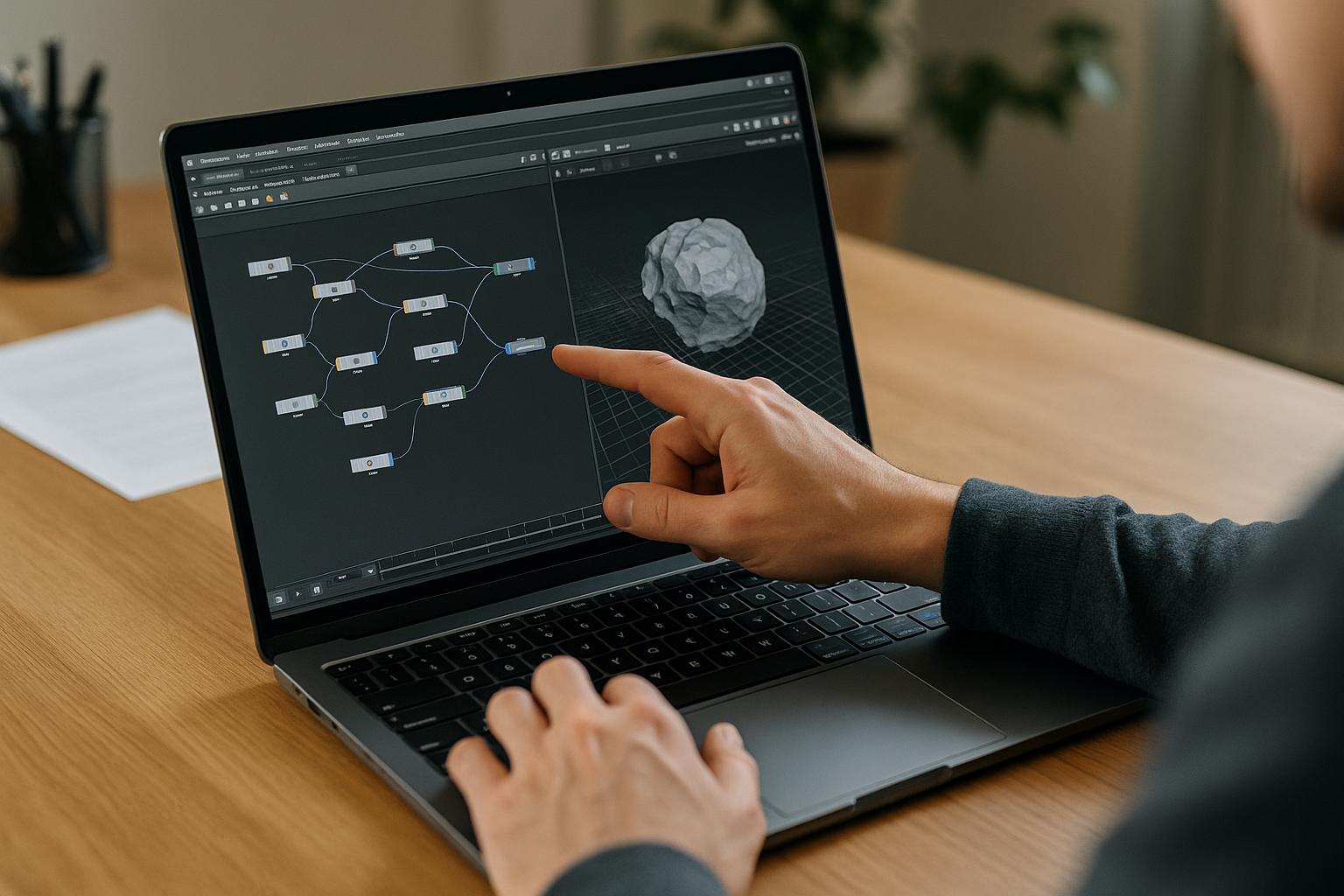
Aristeem provides a virtual Windows machine for running professional software in the cloud. Instead of relying entirely on the CPU, RAM, and GPU in your local computer, you access the Windows workspace through a browser and run SideFX Houdini on the cloud machine.
This can be useful when a local laptop or desktop struggles with demanding Houdini 3D scenes but replacing the device is not practical. You can install Houdini, add the tools your workflow requires, and continue working in a persistent Windows environment without replacing your local operating system. For more details, see the Houdini software setup and available ways to run Houdini with Aristeem.
A Practical Fallback When Houdini 3D Overloads Your PC
If scene optimization, driver checks, and local hardware adjustments still leave Houdini 3D struggling, moving the workload to a more capable Windows machine can be the simpler next step. Aristeem lets you access that environment through a browser, so your local device does not need to handle the full computational workload itself.
This approach is particularly useful when you need to work with demanding scenes from a laptop or another device that cannot comfortably handle the required CPU, RAM, or GPU load. Explore launching professional tools via web interface to see how the workflow works.


