


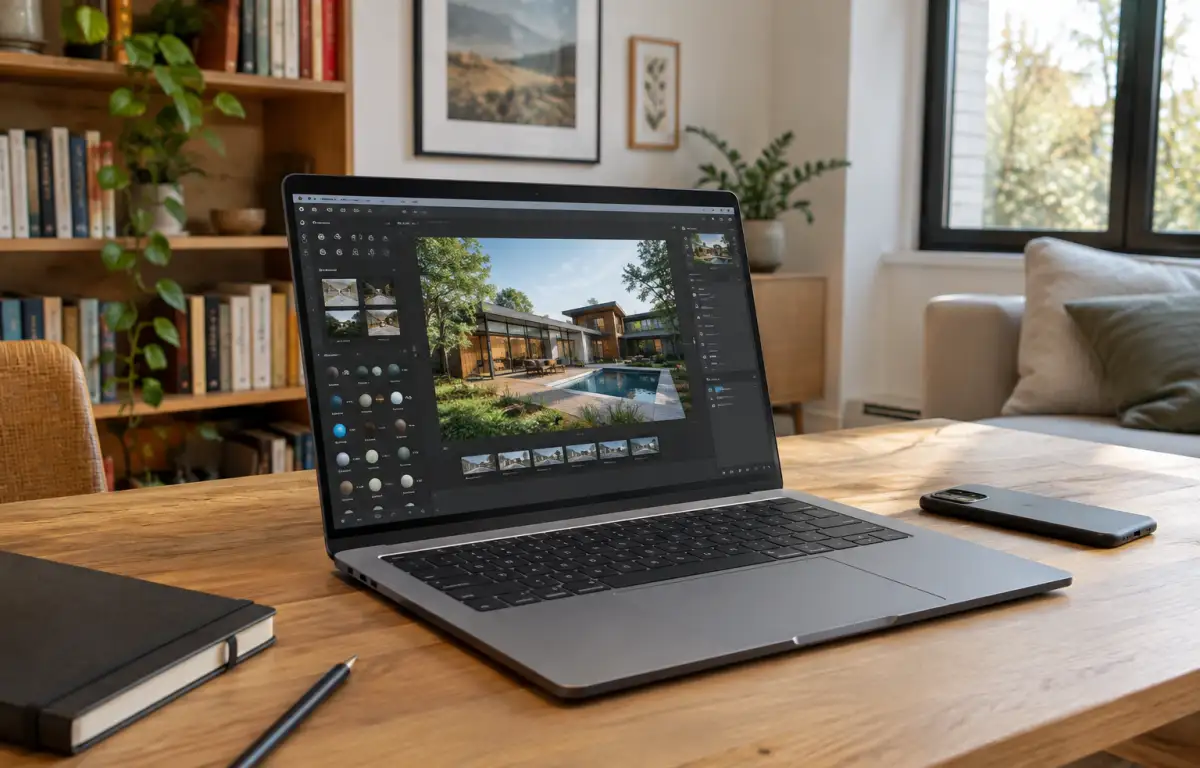
Twinmotion Installation for Office, Site, and Client Demos
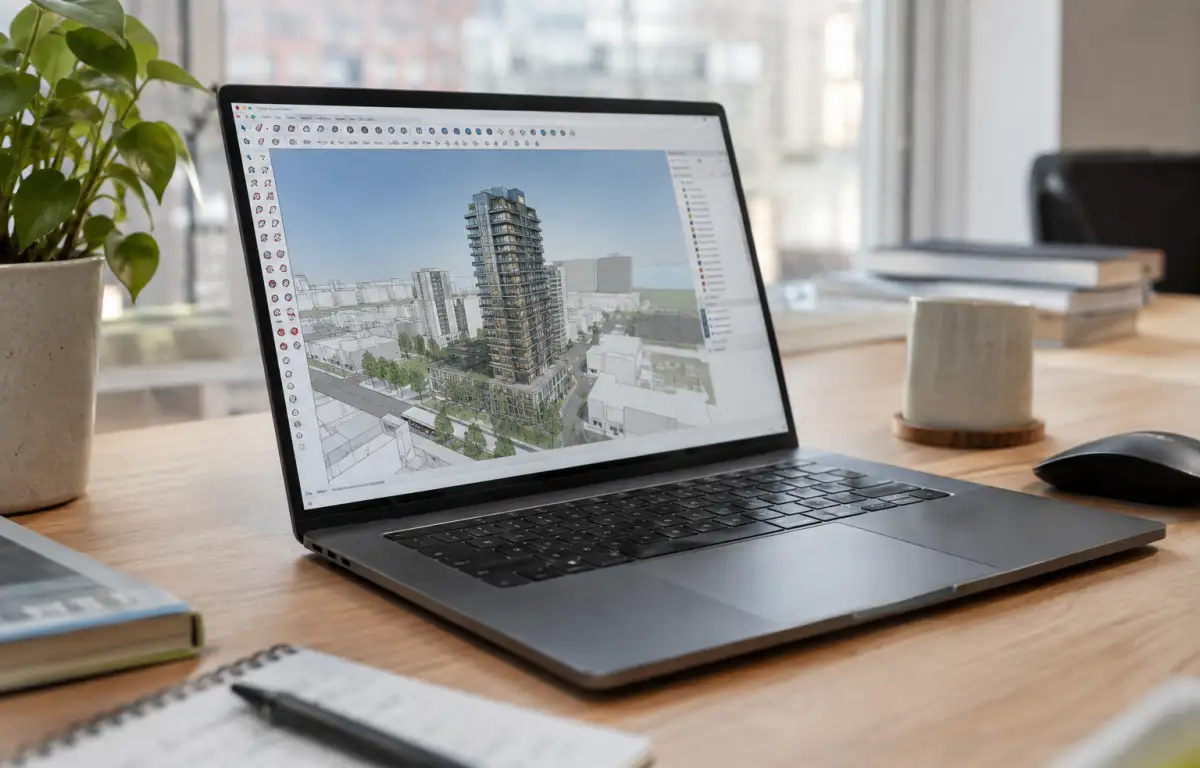
Before a mixed-use tower presentation can be reviewed, the architect needs a working Twinmotion setup that matches the project’s design software, required version, and presentation workflow. Installing Twinmotion is only the first step: the team also needs to check software compatibility, connect the relevant design tools, and prepare project assets before the first client demo.
What to Check Before Installing Twinmotion
Before installing Twinmotion, the team checks which version the project requires and whether it is compatible with the design software used for modeling. They also verify the relevant Datasmith Exporter version for Revit, Archicad, SketchUp, or Rhino. This matters because plugin availability and compatibility depend on the source application’s version. Hardware requirements should also be checked against the scale of the project and the rendering features the team plans to use.
When Local Twinmotion Installation Is Not an Option
An architect may need Twinmotion on a device that cannot run the required Windows software locally. A MacBook, Linux workstation, or a computer with limited graphics capabilities can make local installation impractical. Setting up a separate Windows environment may also mean dealing with dual boot, virtual machines, or additional hardware requirements. When the goal is to use Twinmotion without changing the primary device or maintaining a local Windows installation, a cloud Windows PC offers another way to run the software.
Installing Twinmotion on a Cloud Windows PC
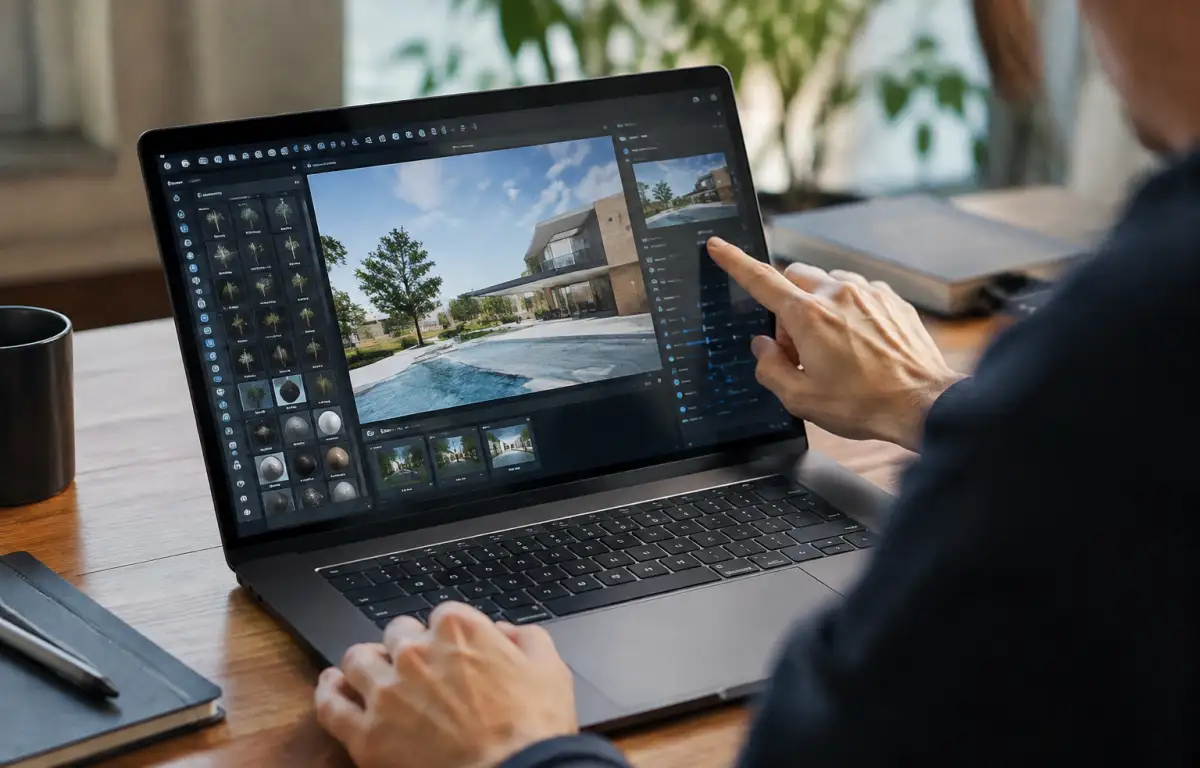
Founded in 2024, Aristeem provides a personal Windows PC in the cloud that you access through a browser on your own device. You have administrator rights, so installing Twinmotion follows the standard Windows process: open a browser inside your Cloud PC, visit the official Epic Games website, download the Twinmotion installer, and run it. Follow the installation steps and sign in with your Epic Games account when required. If your project needs Revit, Archicad, SketchUp, or Rhino integration, download and install the compatible Datasmith Exporter separately where required. Twinmotion and other installed applications remain on your Cloud PC between sessions while your subscription is active. You provide your own software licence if required. For help connecting your design software to Twinmotion, see our Twinmotion Direct Link guidance.
Prepare Your Twinmotion Installation for Project Work
A reliable Twinmotion setup starts with choosing the right software version, checking compatibility with the design application, and installing the required plugins. Once the application is ready, project assets and presentation settings can be organized for upcoming reviews and walkthroughs. If your local device is not suitable for running Twinmotion, Aristeem Work provides access to a cloud Windows PC where you can install and use the software with your own license when required.


