


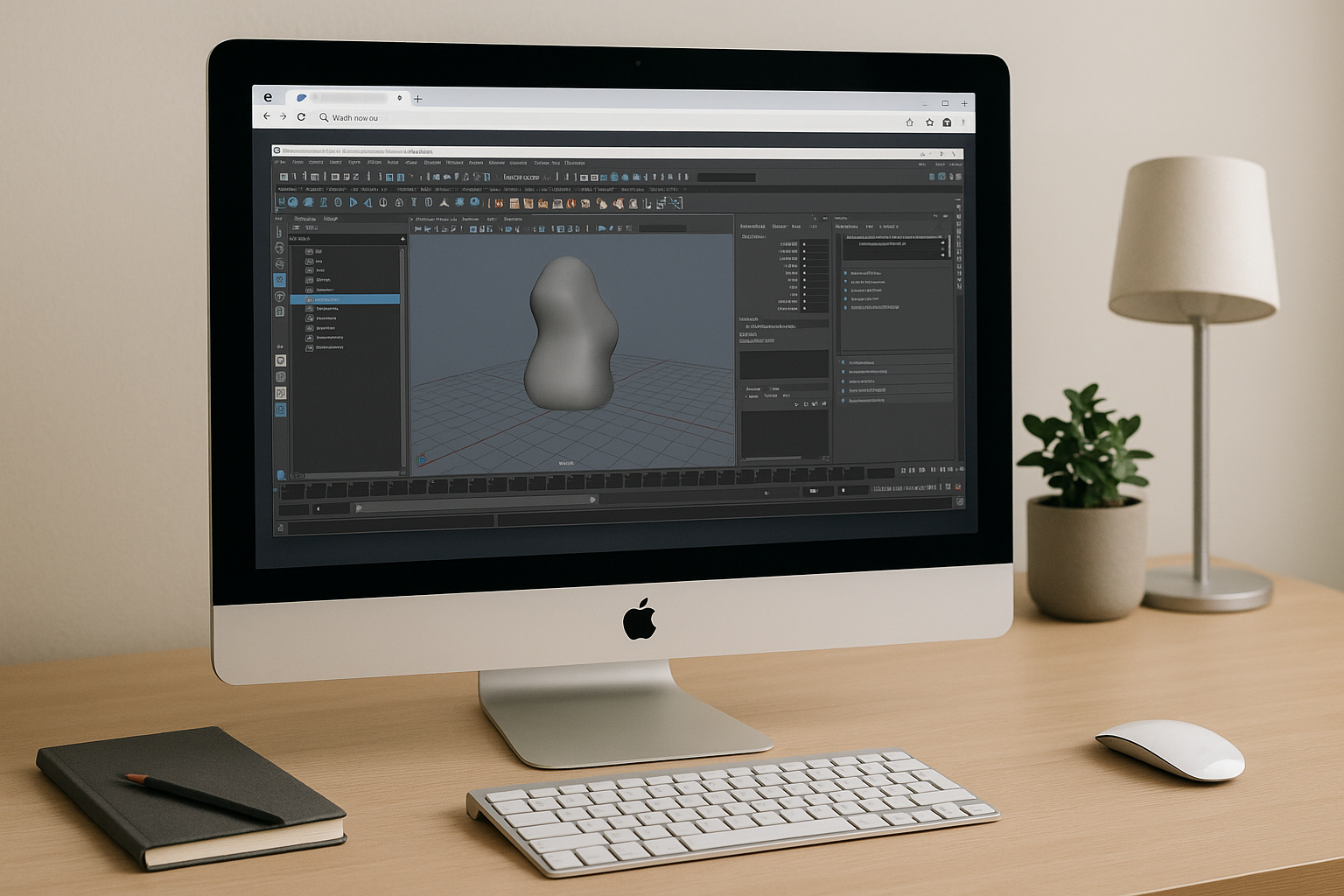
When Maya Won’t Run Well on Your Device
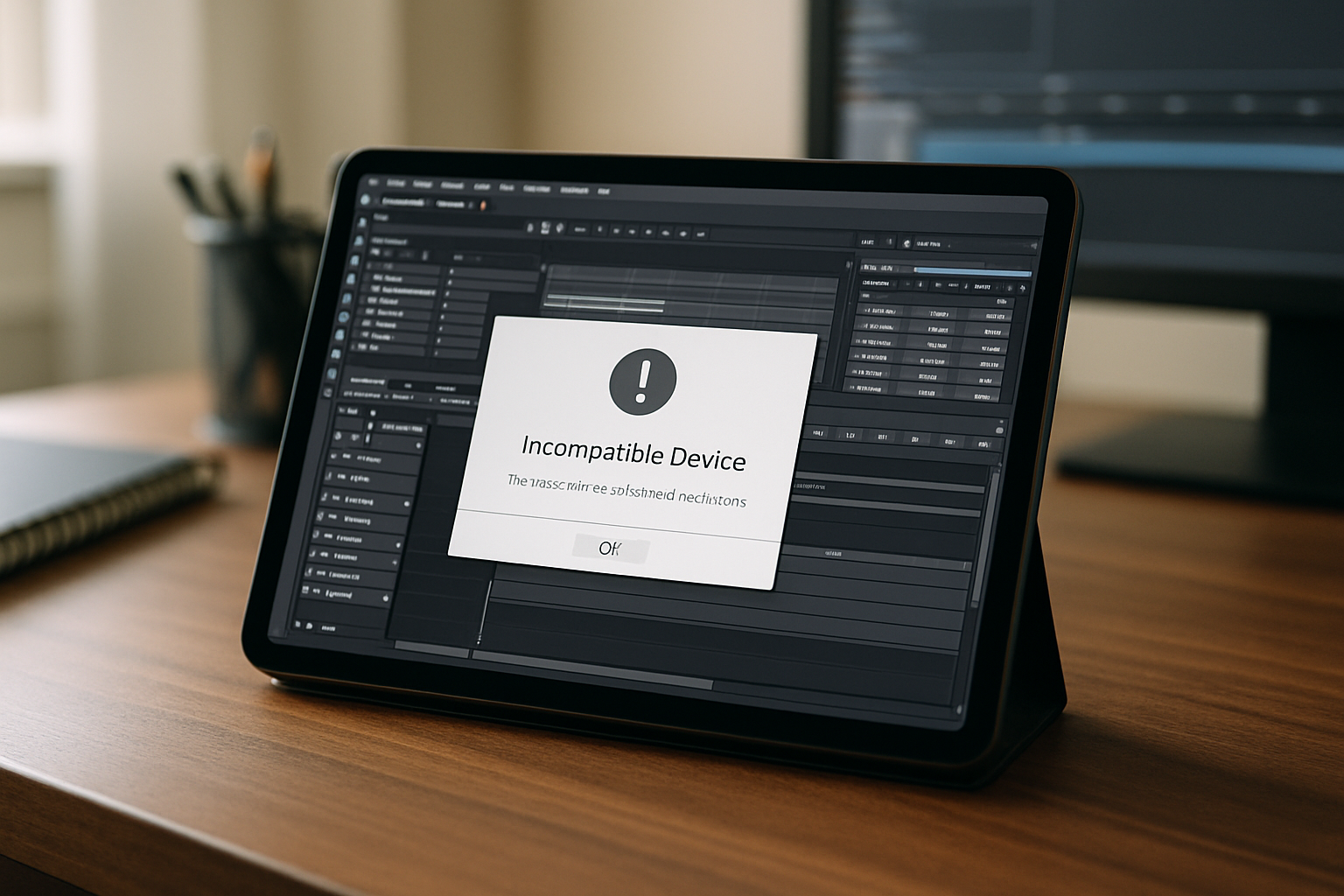
You want to model, animate, or render, but Maya may stall on launch, crash mid-scene, or struggle with simple viewport and playback tasks. On lower‑spec machines, integrated graphics, limited RAM, and older CPUs turn basic operations into minutes of wait time. On non‑Windows devices — like Macs, Linux laptops, Chromebooks, or tablets — installation hurdles, drivers, and unsupported toolchains make reliable use difficult or impossible.
Freelancers juggling tight deadlines can’t afford hours lost to setup, updates, and driver quirks. Students or indie creators working on shared or school devices can’t install system components or meet GPU requirements. Even when Maya runs successfully, thermal throttling, fan noise, and slowdowns can make performance unpredictable.
Common Ways to Run Maya: Pros and Cons
Buying a new workstation can deliver frames, but it drains budgets and time. Between a pro GPU, fast CPU, ample RAM, NVMe storage, and a color‑accurate display, costs stack up fast — and that’s before shipping delays and setup. It also ties your workflow to one location and device, while future Maya versions or projects may require more powerful hardware.
Installing Windows or dual‑booting on a non‑Windows machine helps some users, but it brings driver hunts, storage partitions, admin rights issues, and the risk of breaking your main environment. Using a traditional remote desktop to an office PC can seem convenient, yet 3D viewports suffer from compression artifacts and latency, USB devices or stylus pressure may not pass through reliably, and IT policies can restrict performance — especially for Maya workflows that depend on consistent GPU acceleration.
A More Practical Way to Run Maya
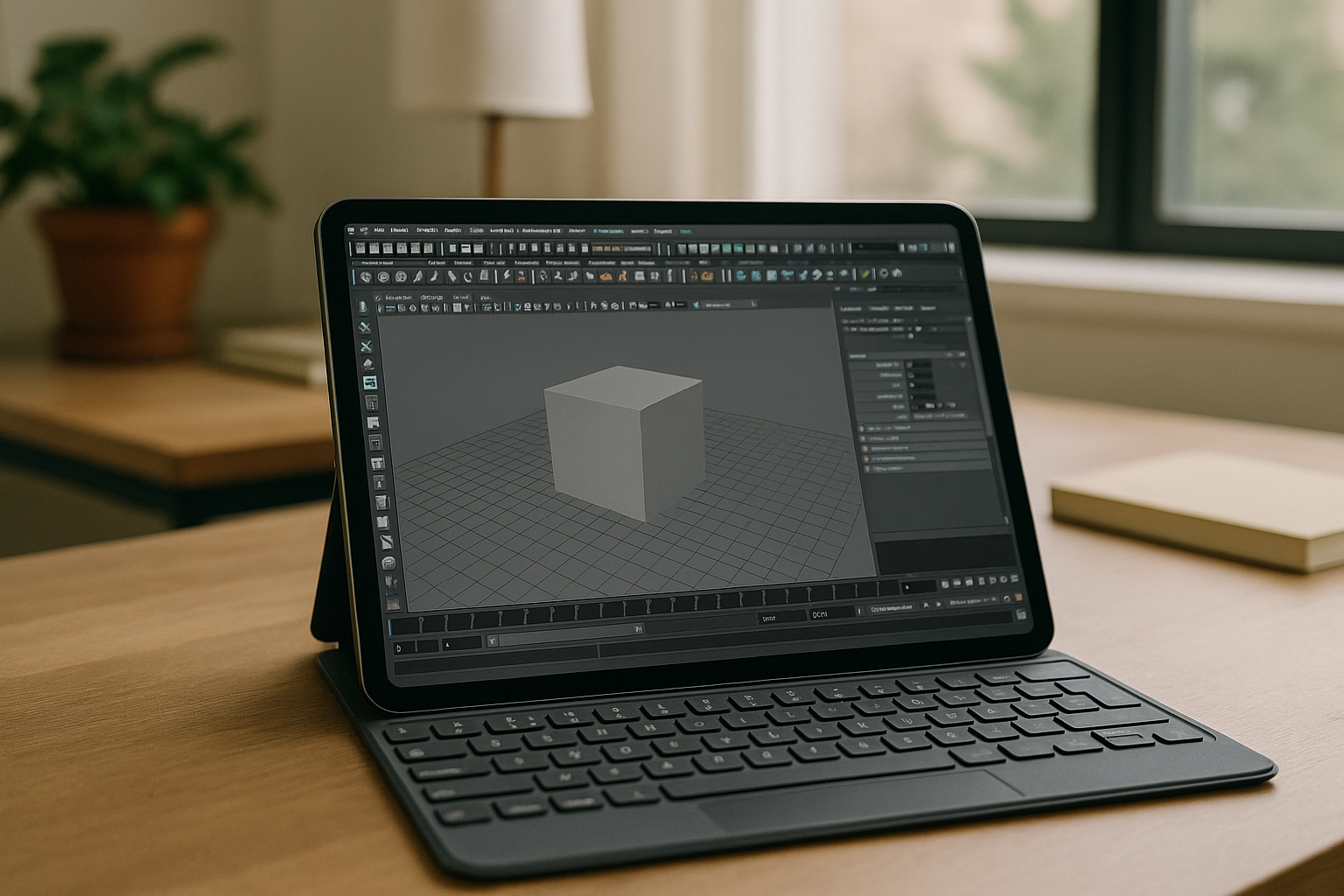
A more practical path is a cloud-based Windows environment with GPU acceleration, accessed through a browser. You open your browser, authenticate, and Maya runs on cloud hardware while your device provides access to the session. reduces reliance on local hardware and lets you access Maya from Mac, Linux, Chromebook, or iPad without changing your primary OS.
Because the environment is pre-configured, you can avoid local setup and driver configuration. You launch Maya from the application library and get straight to modeling, rigging, or lookdev. The cloud environment provides consistent hardware and software settings across sessions.
Run Maya in the Cloud with Aristeem
Aristeem provides a ready-to-use cloud-based Windows environment that you can access through a browser, without installing Maya locally or configuring local drivers. It is not an emulator; Maya runs in a full Windows environment with GPU acceleration. This lets you access Maya from laptops and tablets that may not have the hardware required to run it locally.
Bring your files into the environment and keep your workflow flexible by installing supported plugins, renderers, and other tools as needed. Whether you’re previewing animation, iterating on shaders, or batch‑rendering scenes, Aristeem ets you work with GPU-accelerated cloud resources without changing your local OS or relying on your device’s GPU.
Run Maya Without Upgrading Your Hardware
If hardware, installation, or OS limitations are slowing you down, move your Maya workflow to a cloud-based Windows environment with GPU acceleration. With a pre-configured environment, you can access Maya from the devices you already own without upgrading their local hardware. Start a GPU workspace for Maya.


