


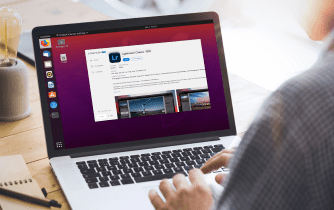

Many photographers need to run Lightroom and Lightroom Classic side-by-side: testing a new Classic build while keeping a stable catalog, or using Lightroom for quick cloud sync while maintaining a long-term archive in Classic. But installs are often blocked by IT policies, OS support ends on older Macs or Chromebooks, and weak laptops struggle with upgrades. Version lock forces updates you cannot roll back, and experimenting with plugins can endanger presets and existing catalogs. The result: switching between the two apps becomes risky, slow, and tied to the quirks of each local machine.
Buying a New PC for Lightroom Classic Is a Costly Detour
Upgrading to a powerful new computer seems like the obvious fix, promising fresh OS support and faster exports. In practice, it is a big expense, takes days to migrate terabytes, and still might not run the exact Lightroom Classic version your workflow depends on. New drivers or OS patches can break older plugins, and you are still locked to one device for critical edits. If your real goal is to switch between Lightroom and Lightroom Classic safely, a hardware purchase is an expensive workaround that does not solve version control, catalog risk, or permission roadblocks.
A Better Path in the Browser
Instead of buying hardware, open a full Windows desktop in your browser and install the exact releases you trust. This approach isolates your catalogs and plugins from local OS quirks, while letting you keep multiple Lightroom Classic versions next to Lightroom for cloud-based shoots or quick selects. For teams or freelancers switching between Mac, Windows, Chromebook, or iPad, this keeps Lightroom Classic consistent and ready on any screen.
How Aristeem Runs Lightroom Classic Without Local Installs
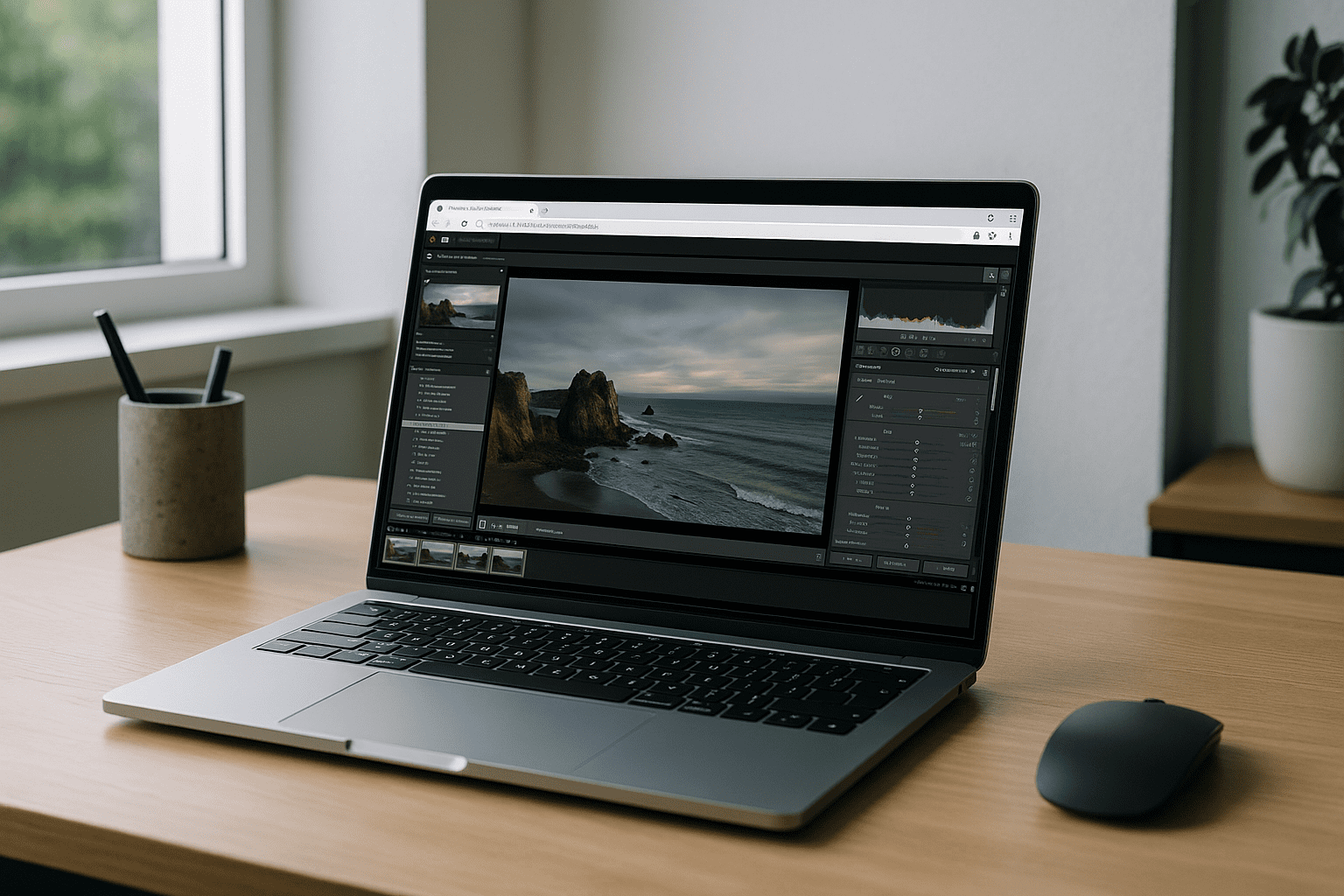
Aristeem provides a full-featured virtual Windows PC that runs in your browser, so you can install any Lightroom release alongside Lightroom, keep your catalogs and presets intact, and add the plugins you rely on. It is not an emulator and not a remote desktop; it is your own isolated Windows environment you control, with your license applied only if Adobe requires one. For more context, see our guide to using Lightroom as an online photo editor without installation. Your catalogs, presets, and utilities live together — safe from local OS conflicts and permission issues — and you can sign in from any device when you need them.
Lightroom in the Browser, Without Version Lock
Run Lightroom Classic, choose the versions that match your workflow, and protect catalogs and plugins — without buying new hardware or fighting OS rules. With a browser-based virtual Windows desktop, your environment stays consistent across devices, so switching between cloud edits and long-term archives is seamless. See how Lightroom runs directly in a browser and keep your workflow stable, portable, and under your control.


