


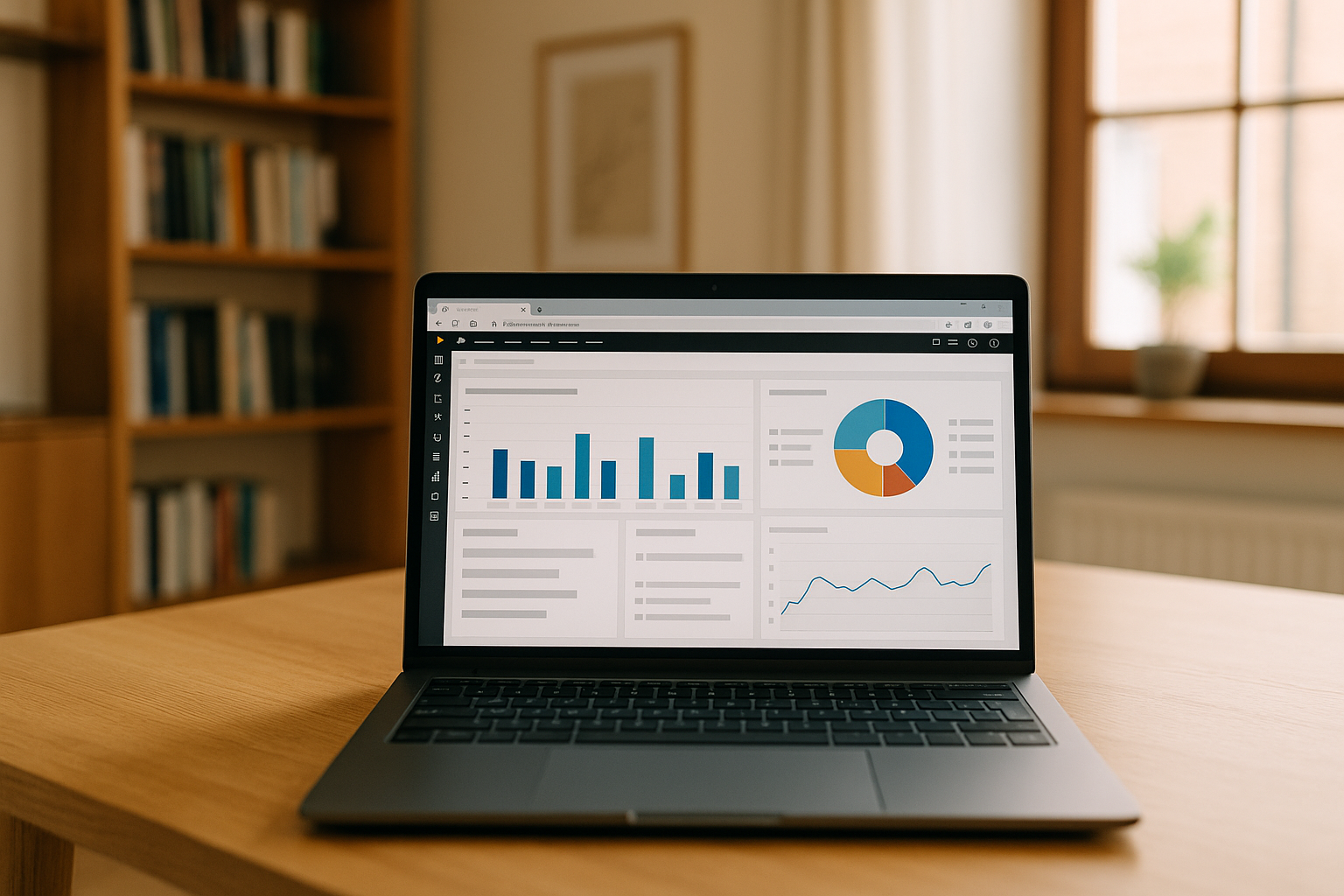
This Microsoft tool has quickly become one of the most important solutions for working with data — from business analytics to creating interactive reports and dashboards. It allows you to turn numbers into understandable visual stories, find patterns, and make informed decisions in just a few clicks. But getting started can be challenging when you need Windows-specific software, a compatible device, or a reliable environment for working with data. The right guidance and access to the necessary tools can help beginners start exploring Power BI with fewer technical hurdles.
If you need to use the desktop application on a device that does not support Windows applications natively, Aristeem provides access to a Windows environment in the cloud. You can connect to the remote workspace from supported devices without installing the Windows application locally. You can jump right into learning and practicing, saving time and frustration while following a structured Power BI training course.
How to get started with Power BI in Aristeem
The following steps explain how to find Power BI, install it in your Aristeem Windows cloud environment, and launch the application for the first time.

-
- Creating an Aristeem accountFirst, create an Aristeem account. Visit the Aristeem website and click “Sign In” to access your account. Once you sign in, you can access your Windows cloud environment through a supported browser.
- Finding Power BI in the Application CatalogAristeem’s Application Catalog provides official links to software publishers, helping you find the applications you need. Search for “Power BI” in the catalog to locate the relevant publisher link and access the official Microsoft download page.
- Installing Power BI in the Windows cloud environmentOpen the official Microsoft website and download the Power BI Desktop installer. Then, install the application in your Aristeem Windows cloud environment. You may need administrator rights, and a separate Microsoft license or account may be required depending on the software’s licensing terms.
Aristeem provides the Windows environment, while you install and manage the software you need. This allows you to use Power BI Desktop without installing Windows or modifying your local operating system.
- Launching Power BI for the first timeAfter installation, open Power BI Desktop in your Windows cloud environment. You can then explore the application interface, open an existing project, or start creating a new report.
Aristeem’s Windows cloud PC: workspace and access
Once you connect to your Aristeem Windows Cloud PC, you can use a remote Windows environment to install and run the applications you need, including Power BI Desktop. The cloud PC provides a dedicated workspace where you can manage software, files, and settings.
Depending on your setup, you can use the Windows environment to:
- Install and manage software: Install Power BI Desktop and other compatible Windows applications using your administrator rights.
- Work with files: Store and manage project files in the available cloud storage.
- Configure your workspace: Adjust Windows settings and application preferences to suit your workflow.
- Access Windows applications remotely: Use your cloud PC from a supported device without installing Windows locally.
The applications run on the cloud PC, while your local device connects to the remote Windows environment. Your experience depends on the available cloud PC resources, network connection, and the requirements of the software you use.
If you are new to data analytics, the “Power BI: Quick Start” guide can help you explore the basics and start working with your first report.

Conclusion
Aristeem creates the ideal conditions for getting started: a ready-made working environment, access to Power BI training course materials, cloud file storage, and the ability to work with Power BI even on low-end devices. It’s not just convenient — it’s the fastest and most efficient way to enter the world of data analytics and start learning how to use Power BI effectively.


