


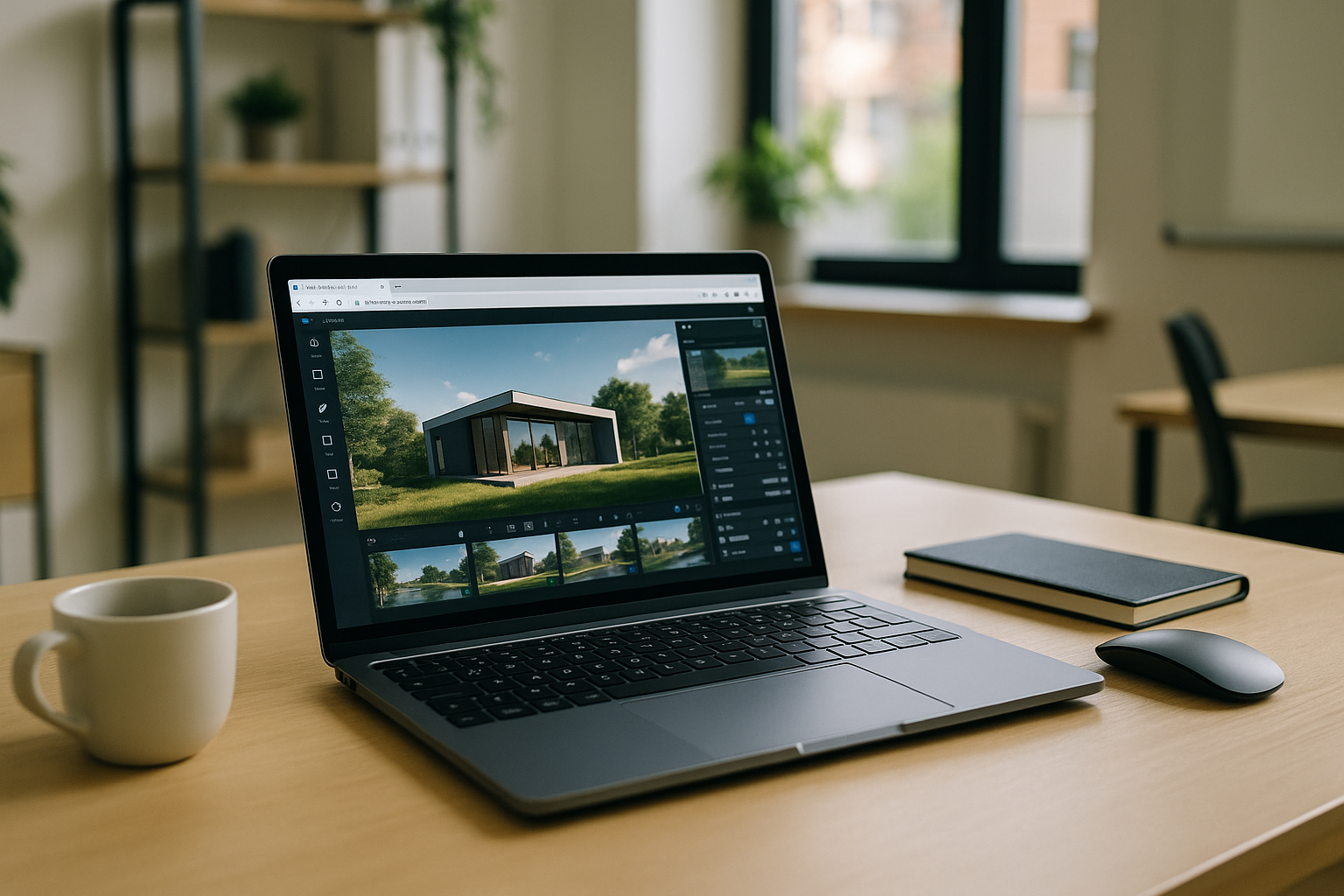
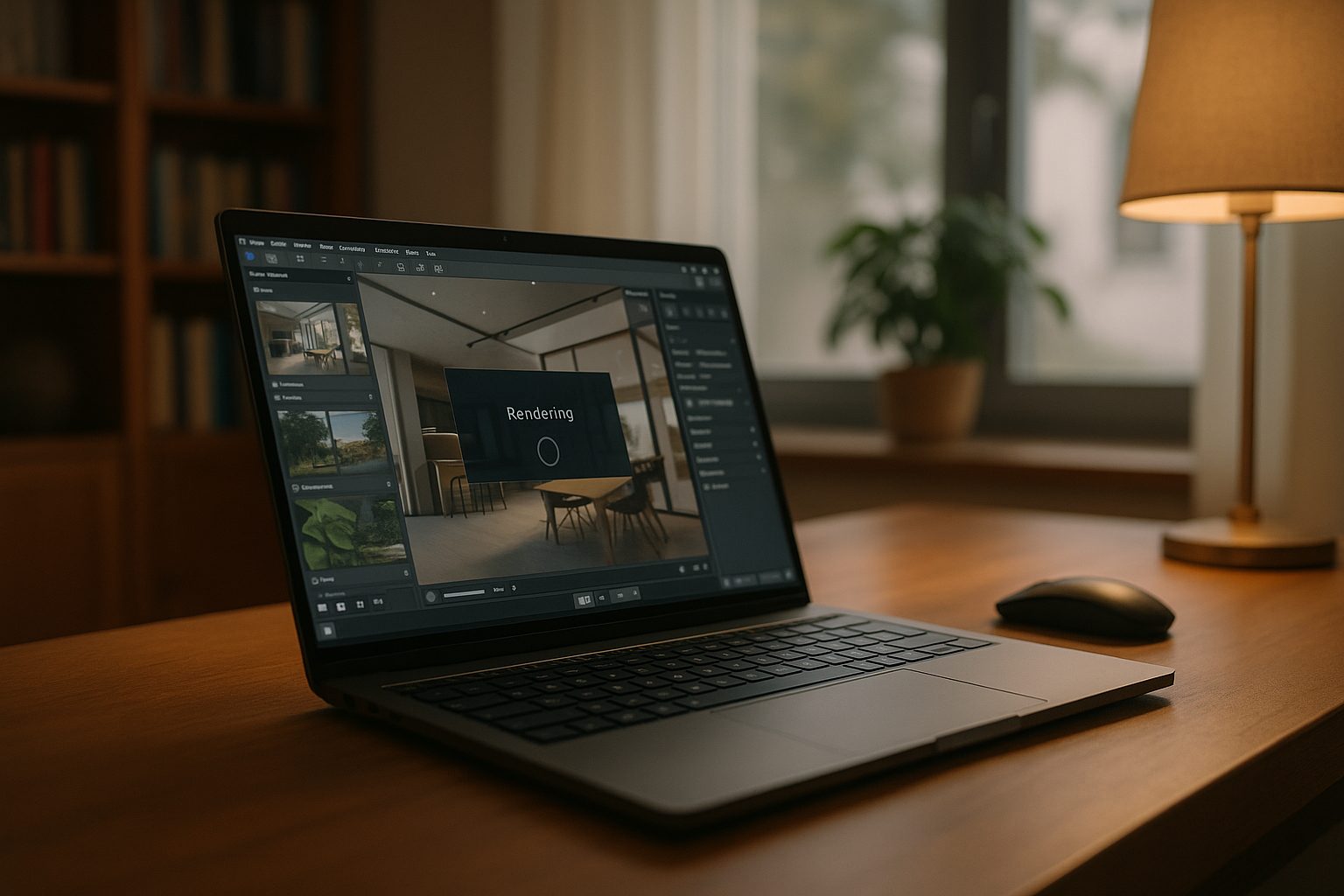
When tight deadlines meet heavy Lumion projects, an underpowered laptop or a locked‑down office PC can’t even open the scene — let alone export videos. Materials, vegetation packs, high-poly assets, large scenes, high-quality lighting, reflections, and video output can push local hardware to its limits, while you still owe clients consistent framing and color.
You need to finish a Lumion render on the device you already have, keep your plugins, and preserve the exact version used across your Lumion projects.
Why buying a new PC for Lumion rendering isn’t always practical
Upgrading to a new workstation is a familiar response for Lumion rendering, but it isn’t always the best move.
- High upfront cost that’s hard to justify for a deadline crunch.
- Delays from procurement, shipping, setup, drivers, and data migration.
- Version drift: your scenes or plugins may not match after the move.
- Mobility limits — hauling a tower or relying on a single desk.
- IT approvals and ongoing maintenance you don’t have time for.
Best path to reliable Lumion rendering without new hardware
Consider the options below; a browser‑based Windows desktop preserves full control while minimizing friction.
| Approach | Capabilities | Complexity |
|---|---|---|
| Borrow/rent a powerful workstation | Temporary access; may lack admin rights for plugins; scheduling conflicts | Medium–High |
| University or office lab queue | Full app but shared; limited hours; often no version pinning or plugin installs | Medium |
| Outsourced render service | Submit files; limited control over materials/plugins; slow iterations | Medium |
| Browser‑based Windows desktop | Install your licensed Lumionand required plugins, choose the needed configuration, and start a Lumion render and export | Low |
2026 shift to hardware‑independent Lumion rendering
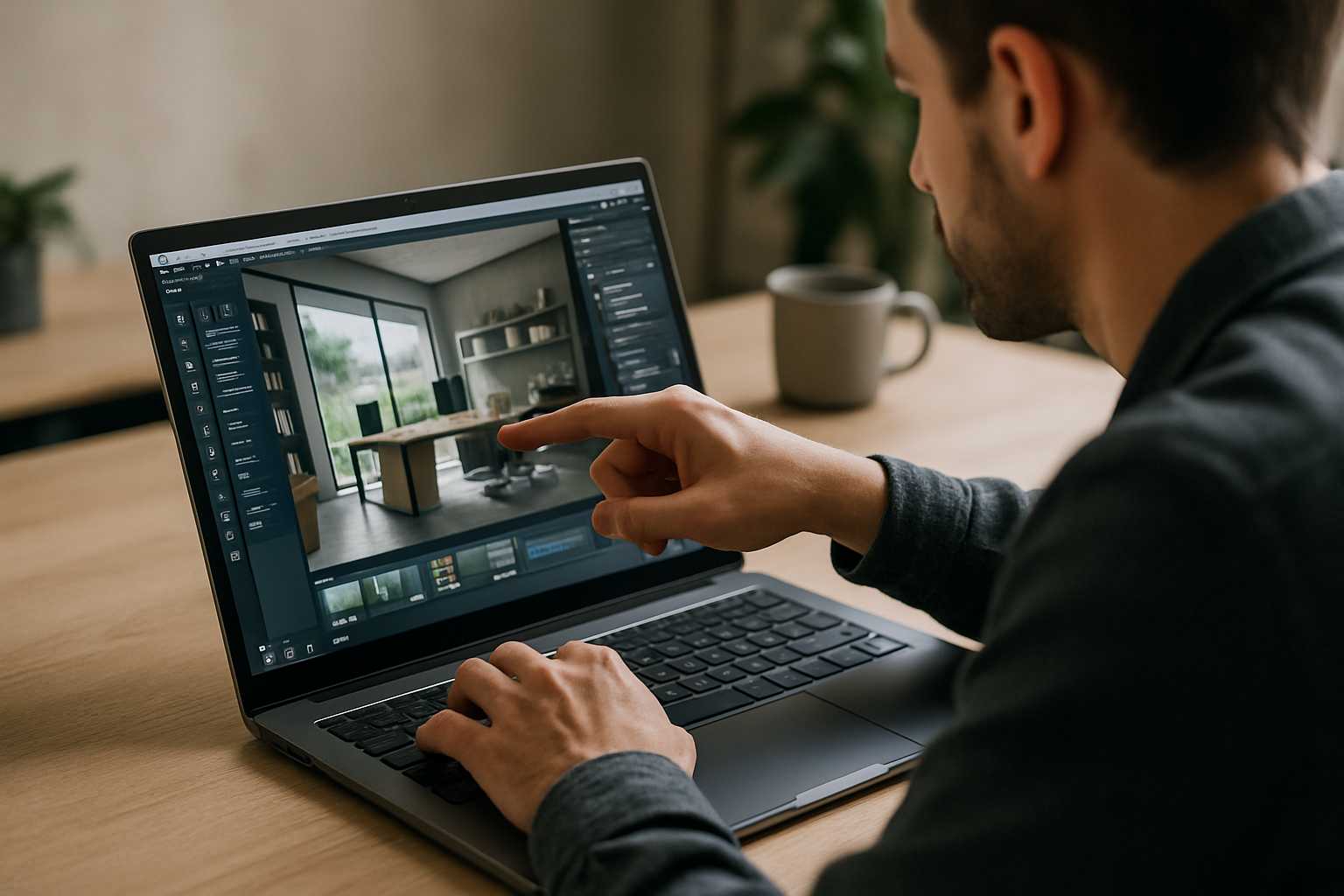
By 2026, browser-delivered Windows desktops offer a way to reduce dependence on local hardware and keep demanding workflows accessible across devices. Iterations stay flexible, assets remain accessible from your cloud workspace, and your Lumion rendering workflow stays consistent across locations and devices.
Lumion rendering in a browser‑based Windows desktop with Aristeem
Aristeem provides a powerful Windows virtual machine that you can access from your existing device, with the flexibility to install the apps, tools, and plugins required for your workflow. Use your own license, open existing files, and start a Lumion render from a compatible device without upgrading your local hardware. Your Windows workspace, applications, and working files remain available in the cloud, so you can continue your Lumion workflow without relying on the performance of your local device.
For students, see how Lumion in the cloud provides full rendering capabilities without requiring a high-end local PC: Lumion for students in the cloud.
Conclusion: dependable Lumion rendering on the device you have
Instead of buying hardware, keep Lumion rendering predictable: install the tools you need, maintain plugin parity, and meet deadlines from a browser‑based Windows desktop. A dependable Lumion rendering workflow stays available through a cloud Windows environment, making it a practical way to run demanding software on the computer you already own.


