


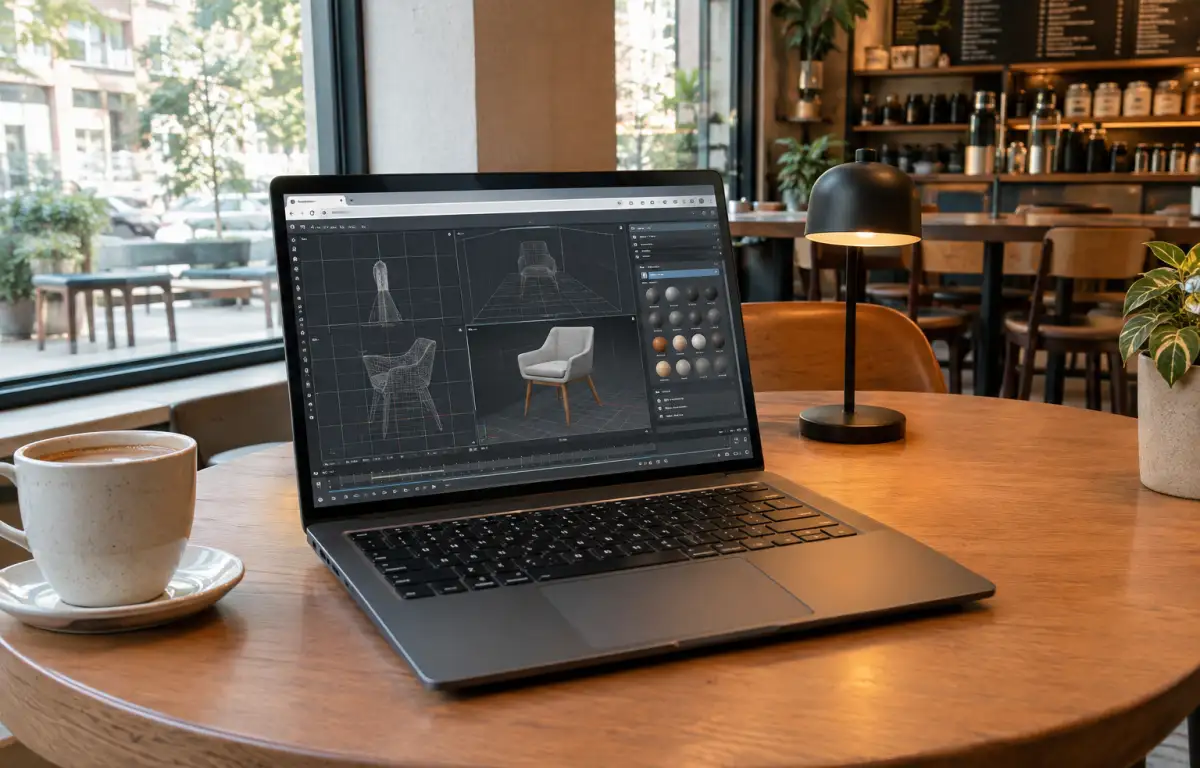
Version-Locked 3ds Max Autodesk Visualization Setup
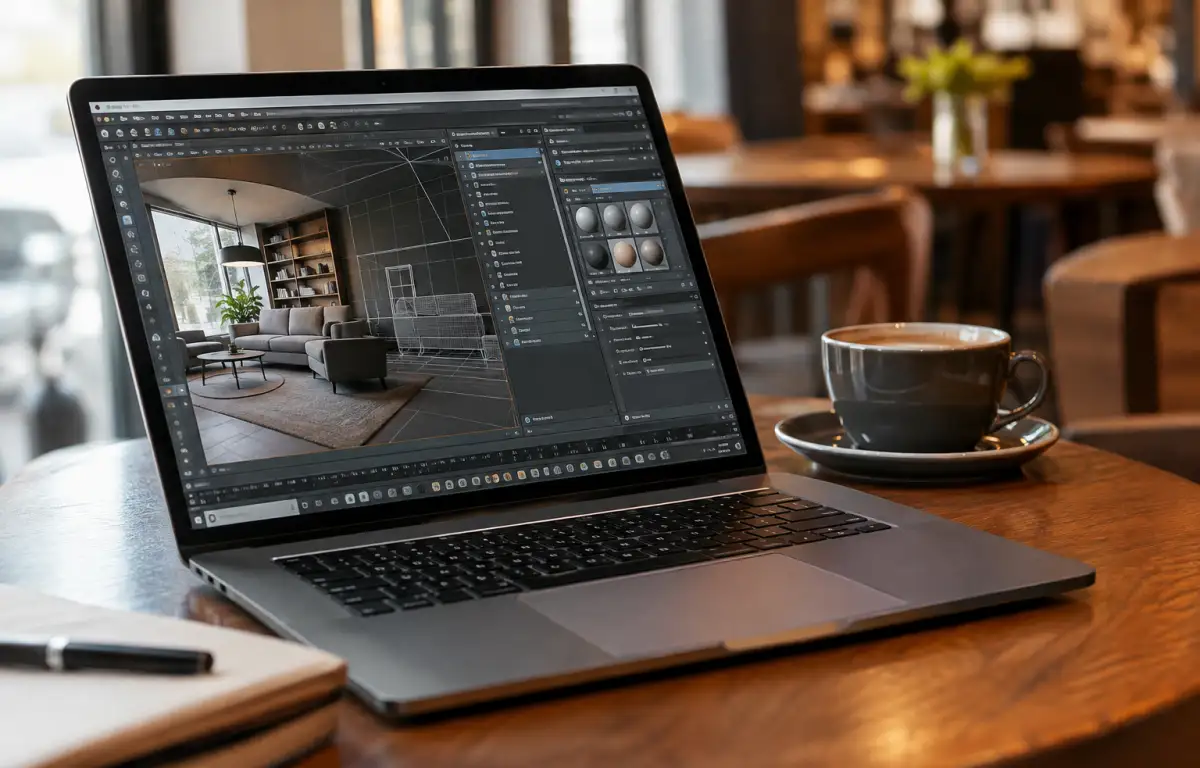
A showroom interior visualization is due for client review next week. Before any modeling or look‑dev begins, the team first confirms the exact Autodesk 3ds Max version, selects the required V-Ray or Corona release, and installs the same 3ds Max plugins used in the studio. First comes the version lock; then the team creates a portable project folder with the studio structure for scenes, textures, caches, scripts, output, and temp.
Next, the artist sets units and gamma to the studio presets, defines render elements, and prepares common path configs so textures and caches resolve from the expected locations. After that, the scene is opened, references are linked, a camera test is rendered, and notes are sent to the client. Many visualization teams keep a tight library of presets and scripts that support this flow. The entire schedule depends on keeping these versions, folders, and settings identical wherever the project is opened.
What a 3ds Max Autodesk Workflow Requires
To keep the interior scene consistent across office, client site, and travel setups, the environment must be version‑locked end to end. That means the same Autodesk 3ds Max build, the compatible V-Ray or Corona release, and matching 3ds Max plugins. It also needs identical project folders and scripts, consistent display and system units, predictable gamma, and the same asset paths and render presets used at the studio.
These details are non‑negotiable because lighting, materials, and outputs are authored on this exact setup. Professionals who use 3ds Max regularly know that even minor mismatches in plugins, renderers, or gamma can change how a scene opens or renders. Teams that share project files expect assets, caches, and scripts to resolve to the same folders, so scenes open with the expected assets and settings under tight deadlines. Which working environment can guarantee this consistency everywhere?
Consistent 3ds Max Autodesk Work Across Locations
Because the interior project relies on a specific Autodesk 3ds Max version, a compatible V-Ray or Corona release, and studio plugins, the work must continue consistently from the office to a client room and on the road. Opening the scene anywhere should reveal the same materials, textures, proxies, and render elements, with identical units, gamma, and output paths, so a region render matches the studio result. Scene path remapping, shared scripts, and renderer presets need to load the same way regardless of device, or else textures go missing and looks drift. A single laptop installation rarely mirrors the studio workstation perfectly, and reconfiguring at each stop invites mistakes and lost time. Instead, the working environment can be independent of the device: a Windows PC in the cloud where you install the required 3ds Max build, renderer releases, plugins, and scripts, then organize project folders and save your presets. The same configured workspace remains accessible from whichever machine you use.
Best Way to Keep 3ds Max Autodesk Environments Aligned
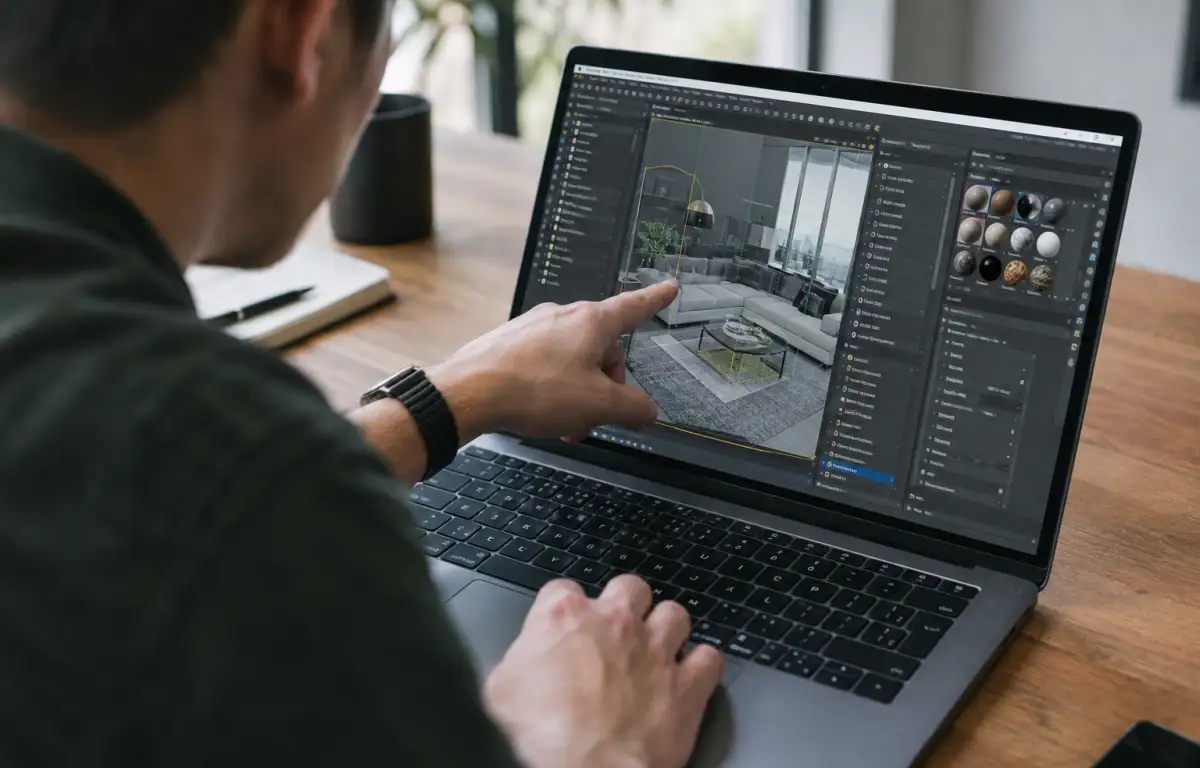
Copying projects to a portable drive and reinstalling locally at each stop is slow, error‑prone, and risks plugin drift. Exporting final EXRs from the office blocks last‑minute tweaks and makes approvals harder. Depending on a single workstation while you travel can stall other tasks and still fails if versions differ. A cloud Windows PC keeps your configured environment in one place — the same 3ds Max version, V-Ray or Corona release, plugins, folders, and scripts — and makes it accessible from the device you have. Users who move between projects and locations can maintain consistent configurations because renderer builds, scripts, units, gamma, and asset paths remain in the same workspace. You open the same desktop, remap the same assets, queue the same renders, and keep progress steady without touching local installs or re‑authoring materials.
Aristeem for Consistent 3ds Max Autodesk Workflows
For more than two years, Aristeem has focused on giving professionals a virtual Windows machine in the cloud for engineering, design, visualization, and data workloads. We study real projects and refine the service so professionals can install their required 3ds Max version, add compatible renderers and plugins, configure units and gamma, organize project folders, and retain their working environment across sessions. We continue testing new options to expand flexibility. Applied here, you get a stable, version‑locked setup and practical notes in our 3ds Max cloud rendering guidance.
Deliver On Time With 3ds Max Autodesk Consistency
This workflow lets you prepare the environment first and then handle lighting, materials, and cameras knowing you can use the same configured rendering environment wherever you work. It depends on a locked 3ds Max build, specific V‑Ray or Corona releases, matching plugins, and identical folders, scripts, units, gamma, and presets. A cloud Windows PC keeps that configured setup accessible across the office, client site, and travel, reducing version and configuration differences when opening and rendering the same scene. If you want a concise path to that experience on the device you already have, explore running 3ds Max with version-locked renderers on a cloud Windows PC to keep momentum and ship on schedule.


