


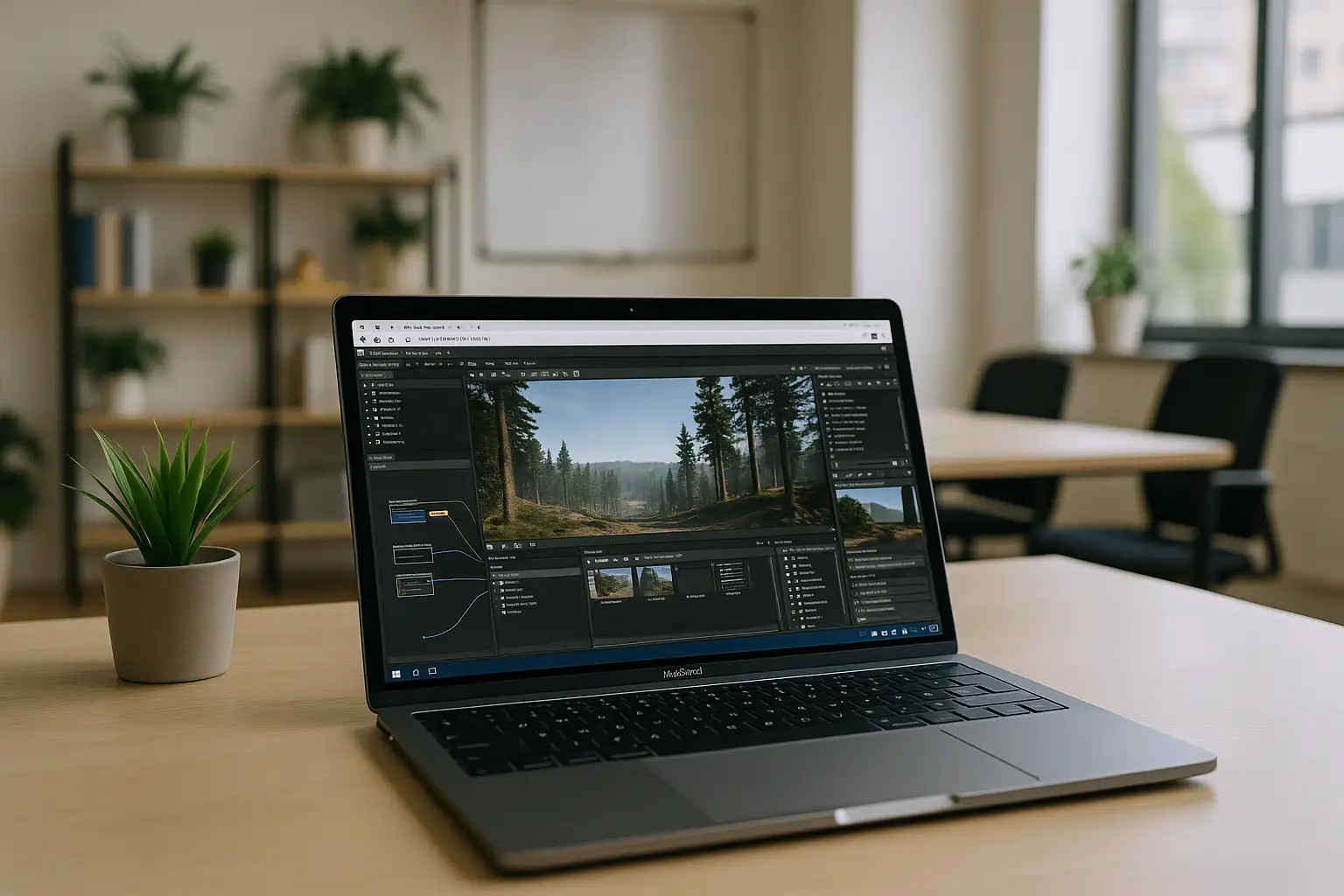
Game developers using a Mac may need CryEngine for projects that rely on its Sandbox editor, rendering tools, and development workflow. However, CryEngine’s documented editor requirements specify Windows, so Mac users need an alternative setup to access the desktop software.
The right approach depends on the Mac’s hardware, whether it uses an Intel or Apple silicon processor, and the resources required by the project. Options include running Windows locally or accessing a remote Windows PC with GPU resources.
Ways to Run CryEngine on Mac
1. Boot Camp on Intel Macs
Boot Camp lets Intel-based Mac users install Windows alongside macOS. However, it is not available on Apple silicon Macs and requires sufficient local hardware resources for CryEngine development.
2. Windows Virtual Machines
Tools like Parallels Desktop and VMware allow Mac users to run Windows without restarting their computers. However, virtual machine performance depends on the Mac’s hardware, and demanding 3D workloads may face graphics limitations.
3. Cloud Windows PC
If your Mac cannot handle the demands of CryEngine or you want to avoid installing Windows locally, a cloud Windows PC offers another option. The editor runs on remote hardware, while you access its desktop from your Mac through a browser.
With Aristeem Work, you can use a GPU-accelerated Windows environment without setting up a local virtual machine or replacing macOS.
Run CryEngine on Mac with Aristeem Work
If you need the Windows desktop editor but prefer to keep macOS as your primary operating system, Aristeem Work provides access to a cloud Windows PC from your Mac.
Instead of installing Windows locally or maintaining a virtual machine, you work with a remote Windows environment through your browser. The software runs on the cloud PC, while your Mac handles access to the workspace.
With Aristeem Work, you can:
- Access a Windows desktop from macOS without setting up a local Windows installation.
- Use GPU-accelerated cloud hardware for graphics-intensive professional applications.
- Install CRYENGINE, project dependencies, plugins, and other development tools yourself.
- Keep project files in persistent cloud storage between sessions.
- Access your workspace through Safari or another supported browser.
Aristeem Work does not replace macOS or provide a pre-installed CryEngine editor. You remain responsible for installing the software and using the appropriate CryEngine licenses and dependencies where required.
This setup is worth considering when your Mac’s local hardware is insufficient for your development workload or when you need a separate Windows environment without changing your primary computer.
 Choosing the Right Way to Use CryEngine on Mac
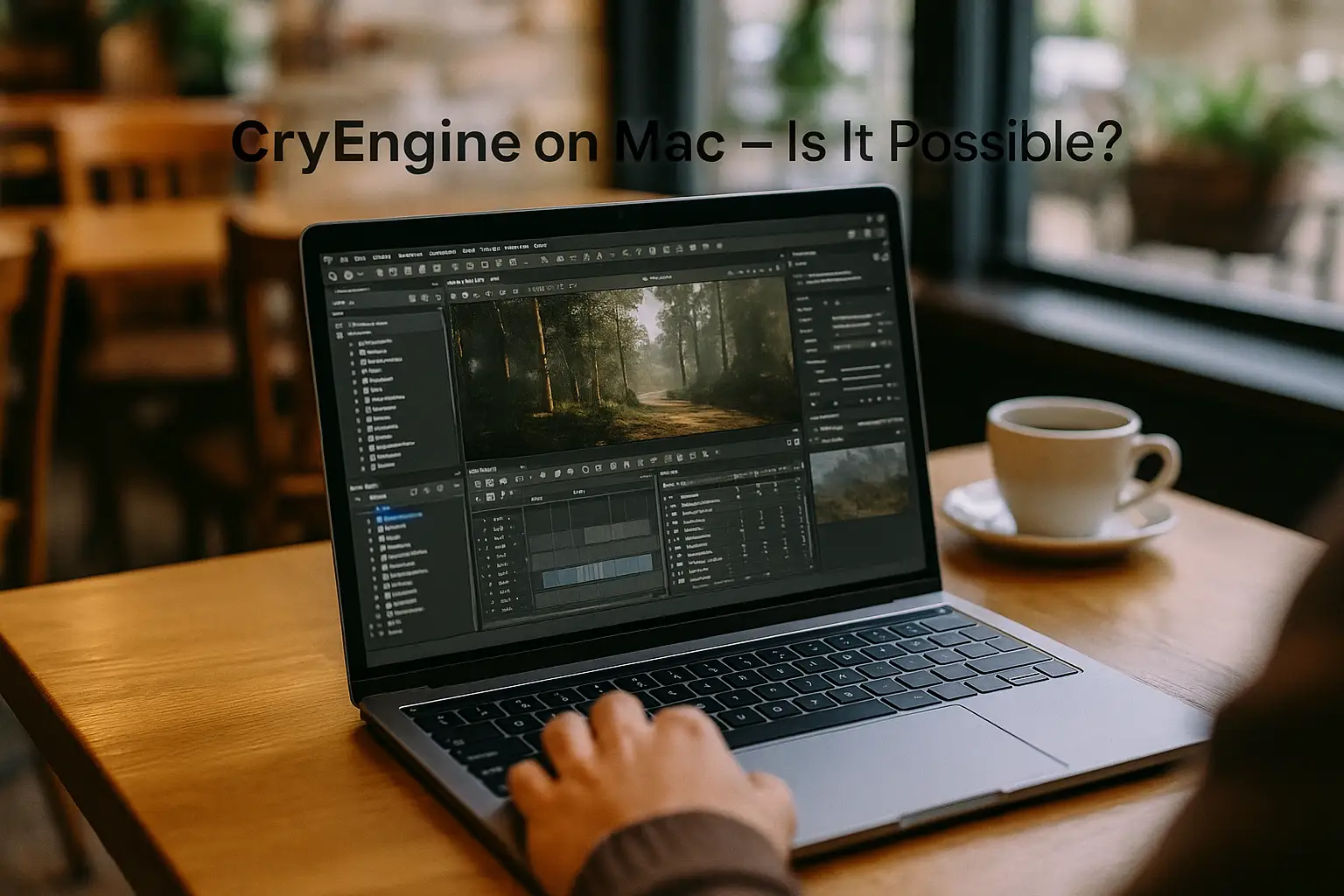
CryEngine does not offer a native macOS editor, but Mac users have several ways to access its Windows development environment. Boot Camp may work on Intel Macs, while virtual machines offer another local option with hardware-dependent limitations.
For developers who need additional computing resources or want to keep Windows separate from their Mac’s local setup, Aristeem Work provides access to a GPU-accelerated cloud Windows PC. You can install CryEngine and your required development tools there, while continuing to use your Mac as your primary device.
Discover how to use CryEngine on Mac with Aristeem through a cloud Windows PC.


